Implement the validation of a String type field on a record page
Validate the Business phone field of the String type on the contact page. The value of the Business phone field must match the +44 XXX XXX XXXX pattern.
Create a replacing view model schema of the contact page
-
Go to the Configuration section and select a user-made package to add the schema.
-
Click Add → Replacing view model on the section list toolbar.
/scr_add_replacing_module.png)
-
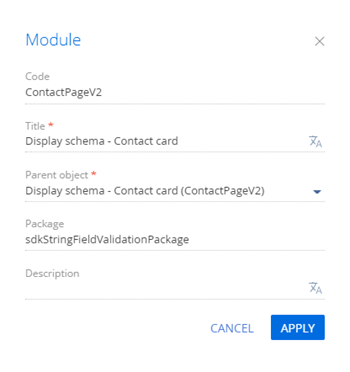
Fill out the schema properties.
- Set Code to "ContactPageV2."
- Set Title to "Display schema - Contact card."
- Select "ContactPageV2" in the Parent object property.
-
Add a localizable string.
-
Add the
ConfigurationConstantsmodule as a dependency to the declaration of the view model class. -
Implement the validation of the String type field.
To do this, implement the following methods in the
methodsproperty:phoneValidator(). The validator method that checks whether the condition is true.setValidationConfig(). The overloaded base method that binds the validator method to the Phone column.
View the source code of the replacement view model of the contact page below.
ContactPageV2define("ContactPageV2", ["ConfigurationConstants"], function(ConfigurationConstants) {
return {
/* The name of the record page object's schema. */
entitySchemaName: "Contact",
/* The methods of the record page's view model. */
methods: {
/* Overload the base method that initializes the custom validators. */
setValidationConfig: function() {
/* Initialize the validators of the parent view model. */
this.callParent(arguments);
/* Add the phoneValidator() method for the [Phone] column. */
this.addColumnValidator("Phone", this.phoneValidator);
},
/* The method that validates the [Phone] column value. */
phoneValidator: function(value) {
/* The variable that stores the validation error message. */
var invalidMessage = "";
/* The variable that stores the number validation results. */
var isValid = true;
/* The variable that stores the phone number. */
var number = value || this.get("Phone");
/* Check whether the number format is valid using the regular expression. */
isValid = (Ext.isEmpty(number) ||
new RegExp("^\\+44\\s[0-9]{3}\\s[0-9]{3}\\s[0-9]{4}$").test(number));
/* If the number format is invalid, populate the error message. */
if (!isValid) {
invalidMessage = this.get("Resources.Strings.InvalidPhoneFormatMessage");
}
/* The object whose property contains the validation error message. If the validation is successful, the object returns an empty string. */
return {
invalidMessage: invalidMessage
};
}
}
};
}); -
Click Save on the Designer's toolbar.
/scr_add_button.png) button in the context menu of the Localizable strings node.
button in the context menu of the Localizable strings node.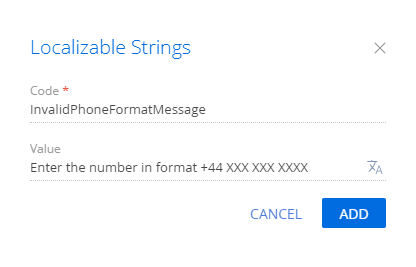
Outcome of the example
To view the outcome of the example:
- Refresh the Contacts section page.
- Enter a phone number that does not match the
+44 XXX XXX XXXXpattern in the Business phone field.
As a result, Creatio will display the corresponding warning on the contact page.
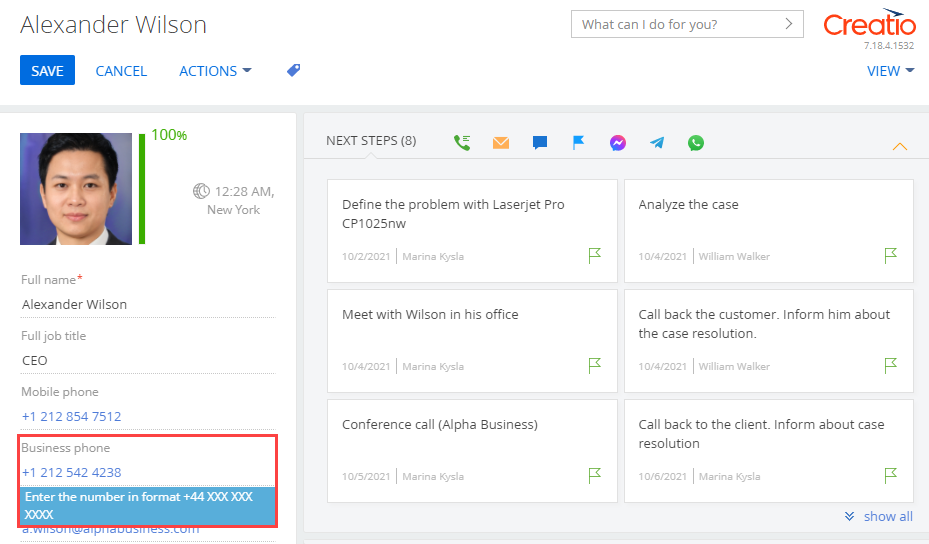
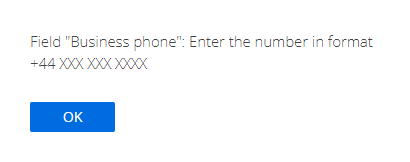
If you try to save a contact whose phone number does not match the +44 XXX XXX XXXX pattern, a message box will open.