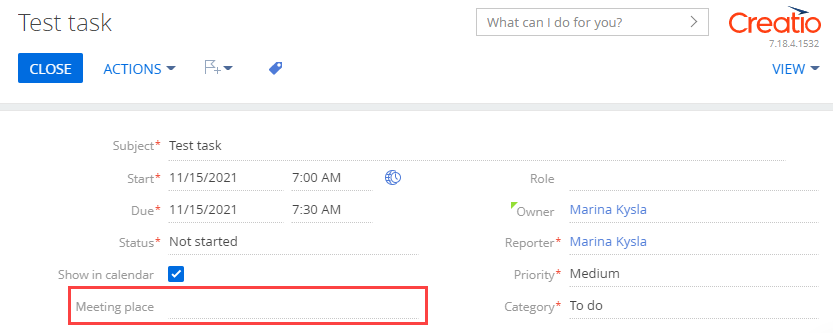
Add a field to a record page using a new column
Add a Meeting place field to the activity page. Before you add the field, add a corresponding column to the activity object schema.
1. Create a replacing object schema
-
Go to the Configuration section and select a user-made package to add the schema.
-
Click Add → Replacing object on the section list toolbar.
/scr_add_entity_schema_replaced.png)
-
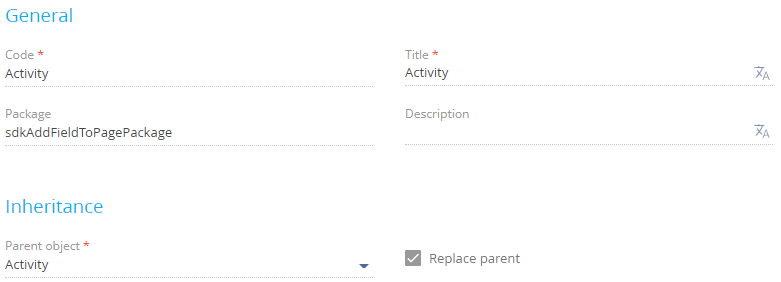
Fill out the schema properties.
- Set Code to "Activity."
- Set Title to "Activity."
- Select "Activity" in the Parent object property.
-
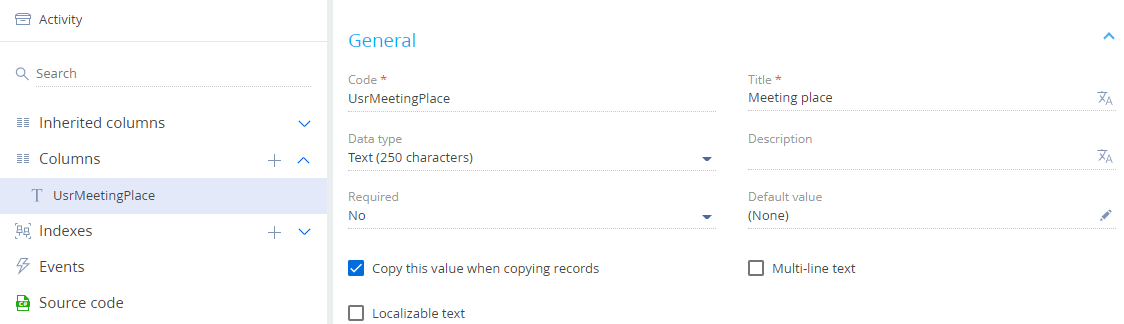
Add a column to the schema.
-
Click Save then Publish on the Object Designer's toolbar.
 in the context menu of the object structure's Columns node.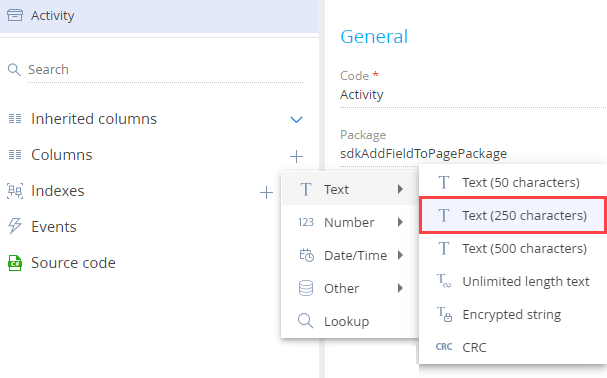
2. Create a replacing view model schema of the activity page
-
Go to the Configuration section and select a user-made package to add the schema.
-
Click Add → Replacing view model on the section list toolbar.
/scr_add_replacing_module.png)
-
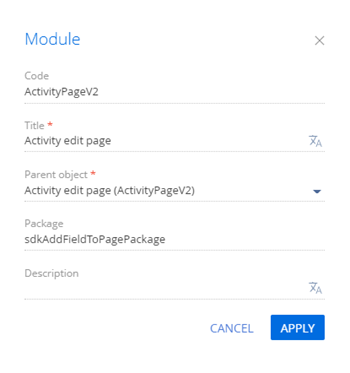
Fill out the schema properties.
- Set Code to "ActivityPageV2."
- Set Title to "Activity edit page."
- Select "ActivityPageV2" in the Parent object property.
-
Add a localizable string.
-
Set up the field layout. To do this, add a configuration object with the settings that determine the field layout to the
diffarray of modifications.View the source code of the replacing view model schema of the activity page below.
ActivityPageV2define("ActivityPageV2", [], function() {
return {
/* The name of the record page object's schema. */
entitySchemaName: "Activity",
/* Display the field on the record page. */
diff: /**SCHEMA_DIFF*/[
/* The properties to add the custom field to the page. */
{
/* Add the element to the page. */
"operation": "insert",
/* The meta name of the parent container to add the field. */
"parentName": "Header",
/* Add the field to the parent element's collection of elements. */
"propertyName": "items",
/* The meta name of the field to add. */
"name": "UsrMeetingPlace",
/* The properties to pass to the element's constructor. */
"values": {
/* Bind the field caption to the localizable schema string. */
"caption": {"bindTo": "Resources.Strings.MeetingPlaceCaption"},
/* Set up the field layout. */
"layout": {
/* The column number. */
"column": 0,
/* The column span. */
"row": 5,
/* The column span. */
"colSpan": 12
}
}
}
]/**SCHEMA_DIFF*/
};
}); -
Click Save on the Designer's toolbar.
/scr_add_button.png) button in the context menu of the Localizable strings node.
button in the context menu of the Localizable strings node.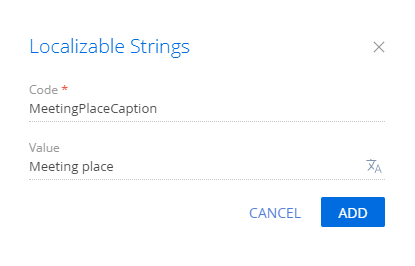
Outcome of the example
To view the outcome of the example:
- Clear the browser cache.
- Refresh the Activities section page.
As a result, Creatio will add a Meeting place field to the page.