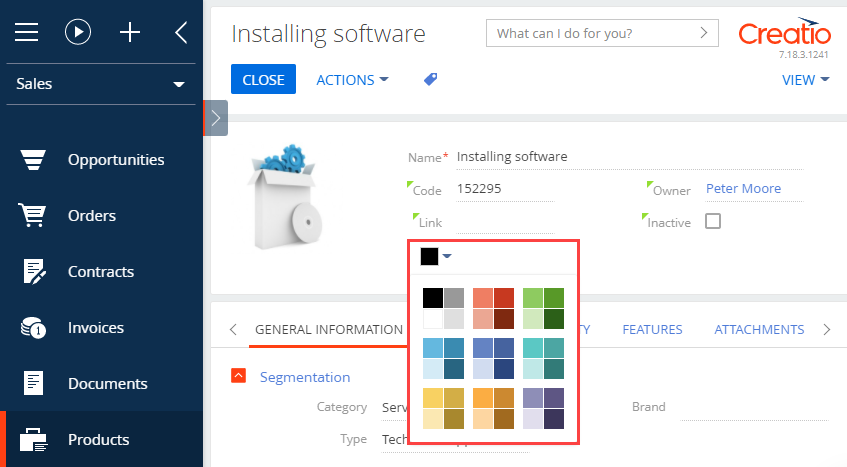
Add a color picker button to the record page
Add a color picker button to the product page.
1. Create a replacement object schema
-
Go to the Configuration section and select a user-made package to add the schema.
-
Click Add → Replacing object on the section list toolbar.
/scr_add_entity_schema_replaced.png)
-
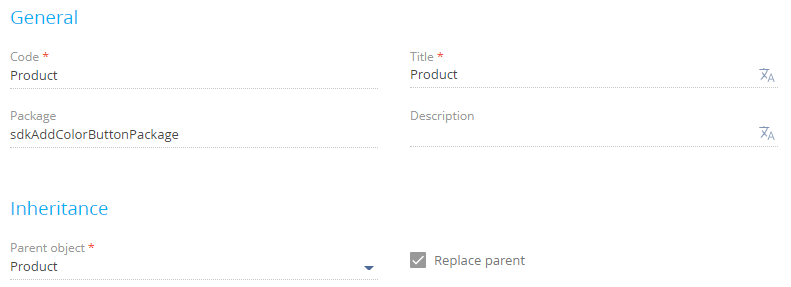
Fill out the schema properties.
- Set Code to "Product."
- Set Title to "Product."
- Set Parent object to "Product."
-
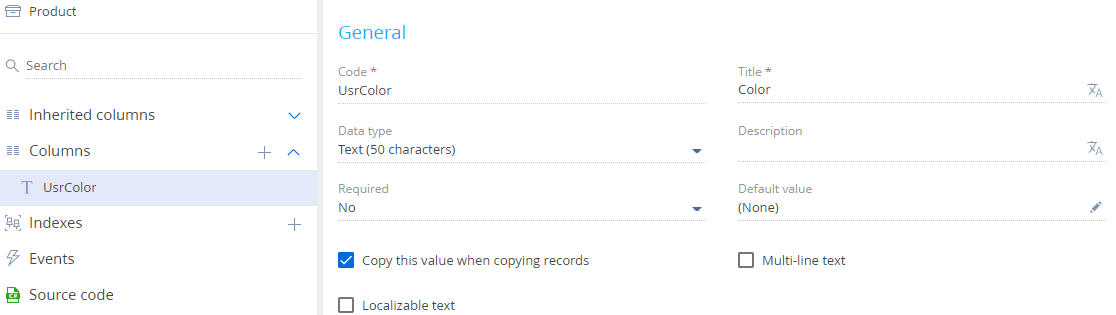
Add a column to the schema.
-
Click Save, then Publish on the Object Designer’s toolbar.
 in the context menu of the Columns node of the object structure.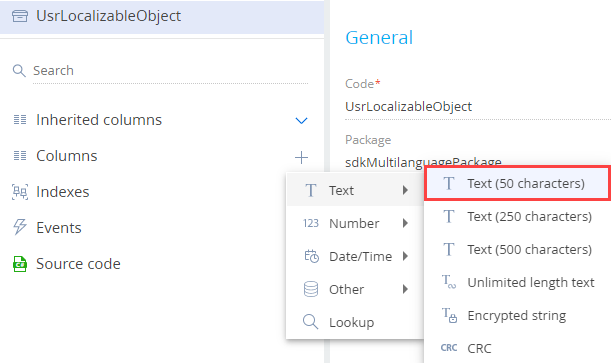
2. Create a view model schema of the replacement product page
-
Go to the Configuration section and select a user-made package to add the schema.
-
Click Add → Replacing view model on the section list toolbar.
/scr_add_replacing_module.png)
-
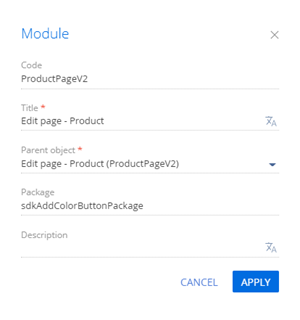
Fill out the schema properties.
- Set Code to "ProductPageV2."
- Set Title to "Edit page - Product."
- Set Parent object to "ProductPageV2."
-
Set up the button layout. To do this, add a configuration object with the settings that determine the button position to the
diffarray of modifications.View the source code of the replacement view model of the product page below.
ProductPageV2define("ProductPageV2", [], function() {return {/* The name of the record page entity schema. */entitySchemaName: "Product",/* Display the button on the record page. */diff: /**SCHEMA_DIFF*/[/* The color picker button. */{/* Run the operation that inserts the element to the page. */"operation": "insert",/* The meta name of the parent container to add the button. */"parentName": "ProductGeneralInfoBlock",/* Add the button to the element collection of the parent element. */"propertyName": "items",/* The meta name of the added button. */"name": "ColorButton",/* The properties to pass to the element’s constructor. */"values": {/* Set the type of the added element to the color picker button. */"itemType": this.Terrasoft.ViewItemType.COLOR_BUTTON,/* Bind the value of the control to the view model column. */"value": { "bindTo": "UsrColor" },/* Set up the button layout. */"layout": {/* The column number. */"column": 5,/* The row number. */"row": 6,/* The column span. */"colSpan": 12}}}]/**SCHEMA_DIFF*/};}); -
Click Save on the Designer’s toolbar.
Outcome of the example
To view the outcome of the example:
- Refresh the Products section page.
- Open the product page.
As a result, Creatio will add a color picker button to the product page.