Contact Center app overview
Contact Center is available as a Marketplace app in Creatio 8.3.3 and is a part of Creatio Service, Creatio Sales, and Bank Customer Journey in Creatio 8.3.4 and later.
You can take advantage of a modern, unified workspace for service and support teams operating in an omnichannel environment via the Contact Center app. The app lets you consolidate real-time communications and asynchronous work into a single, prioritized Agent Inbox. Agents and supervisors can do the following:
- Handle inbound and outbound voice calls.
- Process chat conversations.
- Manage cases and operational tasks.
- Enforce SLA commitments.
- Monitor workload and performance in real time.
The solution modernizes the agent experience without introducing a new routing engine or altering core queue configuration logic available in Classic UI.
To enable the employees to receive incoming calls from the Agent Inbox, set up a connection between Creatio and your phone provider. Learn more: Phone integration connectors.
The app includes Contact Center Agent and Contact Center Supervisor workplaces. The former provides agents with operational visibility as well as supports focus and self-management while the latter enables supervisors to gain a unified view of communication and backlog performance.
The Agent Inbox (Fig. 1) is available via the  button. It is intended to be used with Home sections of Contact Center Agent and Contact Center Supervisor workplaces. The inbox and section consist of the following areas:
- Agent Inbox panel (1) that consolidates all omnichannel work in a single panel.
- Agent status toggle (2) that enables agents to manage communication readiness.
- Dashboard area (3) that displays aggregate data on agent or queue performance.
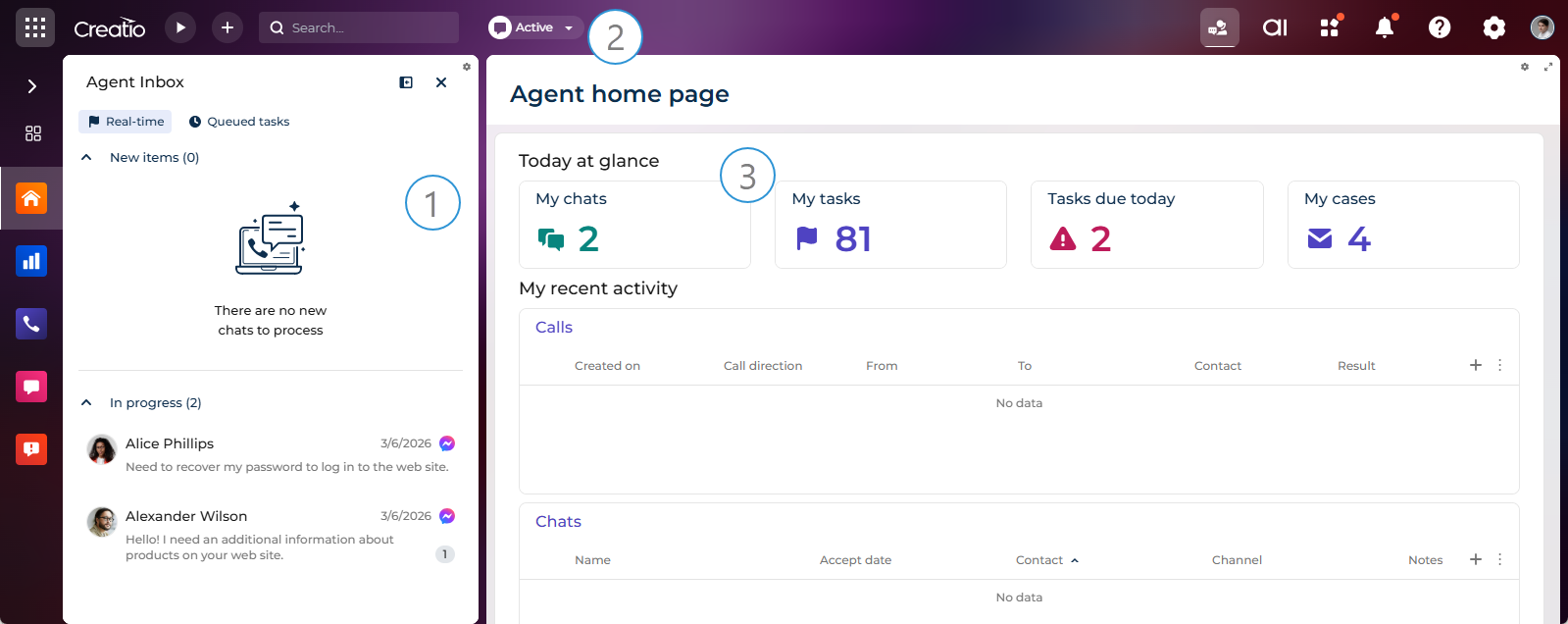
Agent Inbox panel
The Agent Inbox panel includes the following:
- Real-time tab that displays voice calls and chats.
- Queued tasks tab that displays cases out of the box and can be configured to display records of any other object.
Prioritization is applied independently within each tab. Creatio does not blend real-time and queued tasks.
Agents work with chats and calls directly from the Agent Inbox.
The Chat component of the Agent Inbox provides a redesigned digital conversation interface optimized for efficiency and multitasking. It supports the following:
- real-time message updates
- conversation history
- concurrent chat handling (configurable)
- real-time chat translation
Chat translation is powered by Creatio.ai and costs AI Actions to use. Learn more: Creatio.ai overview.
The Call control component of the Agent Inbox provides an intuitive voice interaction UI integrated with the Agent Inbox. It supports the following:
- accepting and rejecting calls
- live call duration tracking
- caller information display
- wrap-up functionality
- call result and comment capture
Creatio.ai enhances voice interactions by providing contextual insights to the agent. The AI layer has access to call metadata, including the following:
- call ID
- caller number
- contact
- account
Based on this information, Creatio.ai provides contextual assistance during the call. This improves agent awareness, personalization, and enhances decision-making.
You can set up custom Agent Inbox queues in the Queues section. Learn more: Manage queue objects.
Use the "Agent desktop queues upload interval" (QueuesUpdateInterval code) system setting to change the update cycle for agent desktop records. Learn more: Manage system settings.
Agent status toggle
The toggle is a modern availability control component that enables agents to manage communication readiness. Its capabilities include the following:
- manage phone availability when telephony is integrated
- manage chat availability
- display active call information if the Agent Inbox panel is minimized
The toggle ensures controlled capacity management and operational transparency.
Dashboard area
The dashboard area displays analytical widgets. The Home section of Contact Center Agent workplace displays the workload of the agent today and recently. The Home section of the Contact Center Supervisor workplace displays the today's workload of the agent, issues that need the supervisor attention, and comprehensive information about the overall workload.
Work with the Agent Inbox
The Contact Center app is built around a unified operational model where agents manage all work from a single aggregated inbox. The workload is split into real-time work and queued tasks. This separation ensures operational focus while maintaining full visibility of workload.
Work with real-time tasks
Real-time work includes voice calls and chats. Its key characteristics are as follows:
- delivered immediately
- require instant agent attention
- governed by capacity rules, for example, one active call at a time
- followed by a structured wrap-up phase
After a real-time interaction ends, the agent completes wrap-up actions, for example:
- link to an existing case
- create a new case
- create a follow-up task
- record outcome and notes
The real-time work is split into new and in-progress items. The prioritization rules are as follows:
-
New real-time items appear at the top of the list.
-
In-progress interactions are shown in a dedicated area below.
-
The following capacity rules are applied:
- only one active call at a time
- configurable concurrent chats
Work with queued tasks
Queued tasks include business records that are distributed through queues and require agent action. They are often referred to as asynchronous tasks. Common examples are service requests and orders. These records have the following key features:
- distributed using the existing Creatio queue engine
- assignable to agents
- respect SLA rules and priority configuration
- appear in the Queued tasks tab of the Agent Inbox
- do not interrupt active real-time work
Queued tasks are usually processed when the agent is not engaged in real-time interactions or when capacity allows.
Sort records in Agent Inbox
The queued task records on the Agent Inbox panel are sorted based on certain rules.
-
The records whose due date has been reached are displayed at the top of the list.
-
These records are followed by more records from the existing queues.
- If multiple queues were created for an object, the records from a higher priority queue are closer to the top of the list.
- If multiple queues with the same priority were created for an object, their records are sorted based on the internal sorting settings of the corresponding queues. Therefore, the records from multiple queues can take turns on the agent desktop. If you do not want to mix the records that are coming from different queues in the list, create additional priorities in the Agent desktop queue priority lookup and assign a separate priority for each queue specified for the object.
-
The records in the queues are sorted based on the object columns first, and then by the number of calls connected to each record. The fewer repeated calls it contains, the higher the record position in the list.
Learn more about sorting queue records by object columns: Sort queue elements.
See also
Get started with the Contact Center app