DataService

Advanced

The Creatio DataService web service is a RESTfull service. RESTful is a quite simple information management interface that doesn't use any additional internal layers, i.e., the data doesn't need to be converted to any third-party format, such as XML. In a simple RESTful service, each record is uniquely identified by a global identifier such as URL. Each URL, in turn, has a strictly specified format. However, this service is not always convenient for transferring large amounts of data.

With the use of the DataService, the data can be automatically configured in various data formats such as XML, JSON, HTML, CSV, and JSV. The data structure is determined by data contracts.

The full list and description of the DataService data contracts is displayed on table.

The Creatio application DataService services
Service Description
InsertQuery Add section record query class.
UpdateQuery Update section record query class.
DeleteQuery Delete section record query class.
SelectQuery Select section record query class.
BatchQuery Package query class.
Filters Filter class.

Restrictions when using DataService 

When using DataService, take into account the following restrictions:

  1. Maximum number of records that you can obtain by request is specified in the MaxEntityRowCount (the default value is 20000). You can change the system setting value in the .\Terrasoft.WebApp\Web.config file.

    Attention. We do not recommend changing the MaxEntityRowCount system setting. This may lead to performance issues. We recommend using the page-oriented display implemented in the "IsPageable" and "RowCount" properties of the SelectQuery data contract.

  2. The number of requests is unlimited.
Create a new record in the section
Advanced

Example. Add to the Contacts section a button that when clicked invokes a method, using the InsertQuery class that adds a record with the following data:

  • Full name — John Best;
  • Full job title — Developer;
  • Business phone — +12 345 678 00 00.

Example implementation algorithm 

1. Add button to the Contacts section 

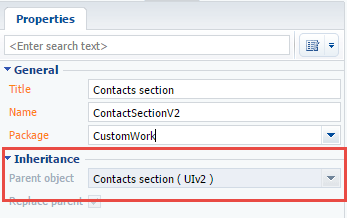
For this particular case, you need to create a replacement client module of the Contacts section.
scr_insertQuery_schema_contact.png

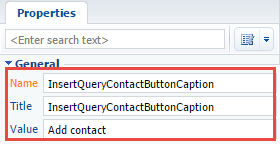
In the created client schema, add the InsertQueryContactButtonCaption localizable string, and set the "Add contact" value to it.
scr_insertQuery_schema_string.png

Add a configuration object with the button location settings to the diff array.

diff
diff: /**SCHEMA_DIFF*/[
    // Metadata to be added to the custom button section.
    {
        // The element is added to the page.
        "operation": "insert",
        // Parent interface element name to which the button is added.
        "parentName": "ActionButtonsContainer",
        // The button is added to the interface element collection  
        // of the parent element (its metaname is specified in parentName).
        "propertyName": "items",
        // Added button metaname.
        "name": "InsertQueryContactButton",
        // Additional element properties.
        "values": {
            // Added element type — button.
            itemType: Terrasoft.ViewItemType.BUTTON,
            // Binding button caption to the localizable schema string.
            caption: { bindTo: "Resources.Strings.InsertQueryContactButtonCaption" },
            // Binding method of processing the button click.
            click: { bindTo: "onInsertQueryContactClick" },
            "layout": {
                "column": 1,
                "row": 6,
                "colSpan": 1
            }
        }
    }
]/**SCHEMA_DIFF*/

2. Add the processing method for the button click event 

In order for a record with the necessary data to be added when a button created in the section is clicked, add the following method to the methods section of the replacement client schema:

methods
methods: {
    // Method of processing the button click.
    onInsertQueryContactClick: function() {
        // Creating the Terrasoft.InsertQuery class instance.
        var insert = Ext.create("Terrasoft.InsertQuery", {
            // Root schema name.
            rootSchemaName: "Contact"
        });
        // Setting the Terrasoft.ParameterExpression value-parameters.
        // A value-parameter instance is created and added to the column value collection.
        // Creating a value-parameter instance for the [Job title] column.
        insert.setParameterValue("Name", "John Best", Terrasoft.DataValueType.TEXT);
        // Creating a value-parameter instance for the [Business phone] column.
        insert.setParameterValue("Phone", "+12 345 678 00 00", Terrasoft.DataValueType.TEXT);
        // Creating a value-parameter instance for the [Job title] column.
        insert.setParameterValue("Job", "11D68189-CED6-DF11-9B2A-001D60E938C6", Terrasoft.DataValueType.GUID);
        // Data update query.
        insert.execute(function(response) {
            // Displaying server answer 
            window.console.log(response);
        });
        // Updating list data.
        this.reloadGridData();
    }
}

Attention. Unlike the previous example, authorization is not required because the code is executed directly in the Creatio application.

The implementation of the InsertQuery class for the client part of the application kernel is different from the implementation of the InsertQuery in its back end. So, to create the parameters, the setParameterValue method is used, and for the query execution — the execute method. Learn about all the available properties and methods of the InsertQuery class implemented in the kernel client part in the API documentation.

Read records in the section
Advanced

Example. In the Contacts section, add a button which will open the method that will use DataService to read records in the Contacts section with the following columns:

  • Id;
  • Full name;
  • Number of activities — aggregate column, which displays the number of activities of this contact.

Example implementation algorithm 

1. Add a button in the Contacts section 

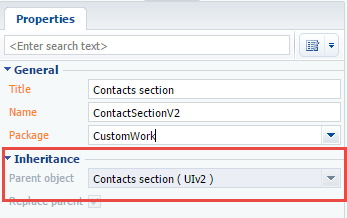
Create a replacing client module of the Contacts section.
scr_insertQuery_schema_contact.png

In the created client schema, add SelectQueryContactButtonCaption localizable string and set its value to Select contacts.

scr_selectQuery_schema_string.png

Add a configuration object with the settings determining the button position to the diff array.

diff
//Setup of section button display.
diff: /**SCHEMA_DIFF*/[
    // Metadata for adding a custom button in a section.
    {
        // Indicates that an elementis added on a page.
        "operation": "insert",
        // Meta name of the parent control element where the button is added.
        "parentName": "ActionButtonsContainer",
        // Indicates that the button is added to the control element collection
        // of parent element (meta-name specified in parentName).
        "propertyName": "items",
        // Meta-name of the added button.
        "name": "SelectQueryContactButton",
        // Additional properties of the element.
        "values": {
            // Type of added element - button.
            itemType: Terrasoft.ViewItemType.BUTTON,
            // Binding button title to a schema localizable string.
            caption: { bindTo: "Resources.Strings.SelectQueryContactButtonCaption" },
            // Binding of the button pressing handler method.
            click: { bindTo: "onSelectQueryContactClick" },
            "layout": {
                "column": 1,
                "row": 6,
                "colSpan": 1
            }
        }
    }

]/**SCHEMA_DIFF*/

2. Add handler method for the button pressing event 

To enable reading the records when the button is clicked, add the following method to the methods section of the replacing client schema:

methods
methods: {
    // Handler method for button click.
    onSelectQueryContactClick: function() {
        // Creating an instance of the Terrasoft.InsertQuery class.
        var select = Ext.create("Terrasoft.EntitySchemaQuery", {
            // Root schema name.
            rootSchemaName: "Contact"
        });
        // Adding the [Full name] column to query.
        select.addColumn("Name");
        // Adding [Number of activities] aggregate column to a query.
        select.addAggregationSchemaColumn(
            // Path to column in relation to the root schema.
            "[Activity:Contact].Id",
            // Aggregation type — quantity.
            Terrasoft.AggregationType.COUNT,
            // Column title.
            "ActivitiesCount",
            // Aggregation function scope - for all elements.
            Terrasoft.AggregationEvalType.ALL);
        // Update query to server
        // Getting whole collection of records and displaying it in the browser console.
        select.getEntityCollection(function(result) {
            if (!result.success) {
                // Processing/logging of error.
                this.showInformationDialog("Data query error");
                return;
            }
            // Displayed message.
            var message = "";
            // Analyzing resulting collection and generating displayed message.
            result.collection.each(function(item) {
                message += "Full name: " + item.get("Name") +
                ". Number of activities: " + item.get("ActivitiesCount") + "\n";
            });
            // Displaying message in console.
            window.console.log(message);
        }, this);
    }
}

Note. Unlike the previous example, authentication is not needed in this case, because the program code is executed by Creatio directly.

In the client of the application core, there is not a class like the server core SelectQuery class. To select data from a section, use the Terrasoft.EntitySchemaQuery class. For more information on this class methods and properties are described in the API documentation.