Check bulk email sending status
When an email starts, all contacts that were added to the Audience tab will be sent an email generated according to the email template. Creatio sends emails in batches. The number of emails in a batch can be up to 20000.
Once the email starts, the information on the Design content and Audience tabs becomes non-editable.
Check the email progress
View the email progress in the Status field on the Bulk email info tab. The following email statuses are available in Creatio:
- Draft. The email is being composed. Every new bulk email starts in this status. You can edit the sender, subject, template, audience, UTM parameters, and schedule. No emails are sent while the email is in this status.
- Planned. Creatio validated the email headers and unsubscribe link, and the email is ready to be sent. For emails used in a campaign flow, the "Planned" status requires publishing the email first. Without publishing, the email cannot be added to a campaign flow.
- Scheduled. The email was scheduled for future delivery. You can see the scheduled date and time on the Delivery settings tab. On scheduled time Creatio moves the email automatically to the next stage. Click Stop to cancel the scheduled send.
- Waiting before send. The email is on hold before Creatio begins sending it. While the email is in this status, you can pause it and restart it later. Edit the period while you can pause an email in the "Delay time before sending bulk email, seconds" (
MandrillMailingDelayInSecondscode) system setting. Out of the box, the delay before Creatio starts sending emails is 10 seconds. - Queued. The email has been segmented and is being sent, but Creatio has not yet received the personal response on the delivery.
- Active. This status applies to emails that are used in a campaign flow. It indicates that the email is currently being sent as part of an active campaign.
- Completed. All recipients have been processed and Creatio finished sending the email. This is a final status.
- Stopped. You manually stopped the email before Creatio finished sending it. Partial results are available. You can still review delivery metrics and recipient responses for the portion of the audience that received the email.
- Expired. Creatio stopped sending the email on the date and time specified in the Expiration date field. It is not possible to resend the email to the remaining contacts. Creatio marks the remaining contacts using "Stopped (time to send expired)" personal response.
- Delivery error An error occurred during the email delivery process. Check the email page for details.
A bulk email normally moves through statuses in the following order:
- Draft.
- Planned.
- Waiting before send.
- Queued.
- Completed.
If you schedule the email for a future time, the flow includes a scheduling branch:
- Planned.
- Scheduled (waits until scheduled time).
- Waiting before send.
Emails used in a campaign flow move through the statuses as follows:
- Draft.
- Planned.
- Active.
- Completed.
Use the Performance tab to view the latest updates about email deliveries and recipient responses and analyze open and click dynamics.
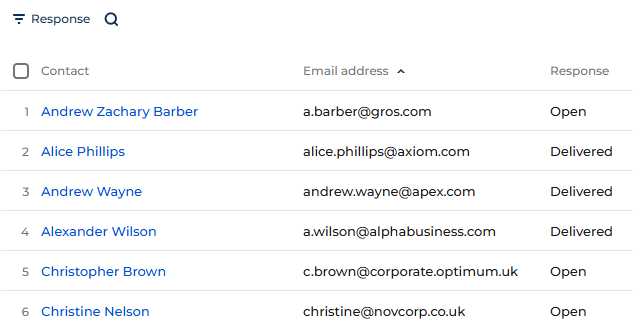
The Audience tab displays responses per recipient, for example, "Delivered," "Open," "Clicks," etc. This tab is updated gradually as Creatio receives and processes responses from the email provider. Learn more: Personal responses.
Check email completion status
You can monitor the general status of a bulk email in the list of the Email section.
Email status is shown in the Status field on the Bulk email info tab of the email page and in the list of the Bulk emails section.
Information about email status for a specific recipient can be obtained based on responses from email recipients or email servers. The information is available on the Audience tab → the Response column of the audience list (Fig. 1).
To view dates and exact start/end time for an email:
- Open the Bulk emails section.
- Click
 → Finished on → Started on → Select.