10X Unlimited release notes
At Creatio, we are committed to empowering our customers with industry-leading product innovations for workflow automation, no-code development, and modern CRM. Today we are advancing new forms of innovation with Creatio version 10X Unlimited, featuring the following new capabilities and enhancements.
A comprehensive overview of technical changes and enhancements can be found in the 10X Unlimited changelog.
The update guide for the on-site applications is available in a separate article.
Creatio AI Studio
Creatio AI Studio is a web UI of the Creatio Agentic platform that lets you build, deploy, orchestrate, and govern AI agents at scale across workflows, channels, and enterprise operations. Agents work inside Creatio, reason over CRM data, run web searches, and execute actions across channels without custom development. With Creatio AI Studio, you can do the following:
- Design agents in natural language using the built-in Twin conversational assistant to define agent roles, behavior, and constraints without coding. Twin assistant is itself a system agent that leverages the newest large language models to help you achieve your tasks on Creatio agentic platform and roll them out to your users in the easiest possible manner.
- Build and govern enterprise-wide agents centrally, ensuring consistent behavior and shared oversight across your organization.
- Deploy agents across every channel, including email, web chat, telephony, and in-chat voice to deliver seamless omni-channel experiences.
- Package and reuse agent capabilities as portable skills that can be exported and imported across agents and environments.
- Ground agent responses in your data using retrieval-augmented generation (RAG) over uploaded files and web content, with cross-conversation memory retained automatically.
- Trigger agents from business events, including Creatio CRM activity and web-wide triggers for event-driven automation.
- Enforce governance at every step with human-in-the-loop approvals, PII masking, tool call gating, and configurable enforce or observe modes per policy.
- Maintain full audit traceability through a unified, human-readable log covering policy decisions, approvals, and tool executions.
- Manage isolated environments for development, UAT, and production with dedicated deployment controls.
- Monitor cost and performance with token consumption tracked per run and per agent for budget visibility and in-run management.
- Configure authentication via Open ID Connect (OIDC) using an identity platform.
- Control dynamic rollouts using Feature Flag Service.
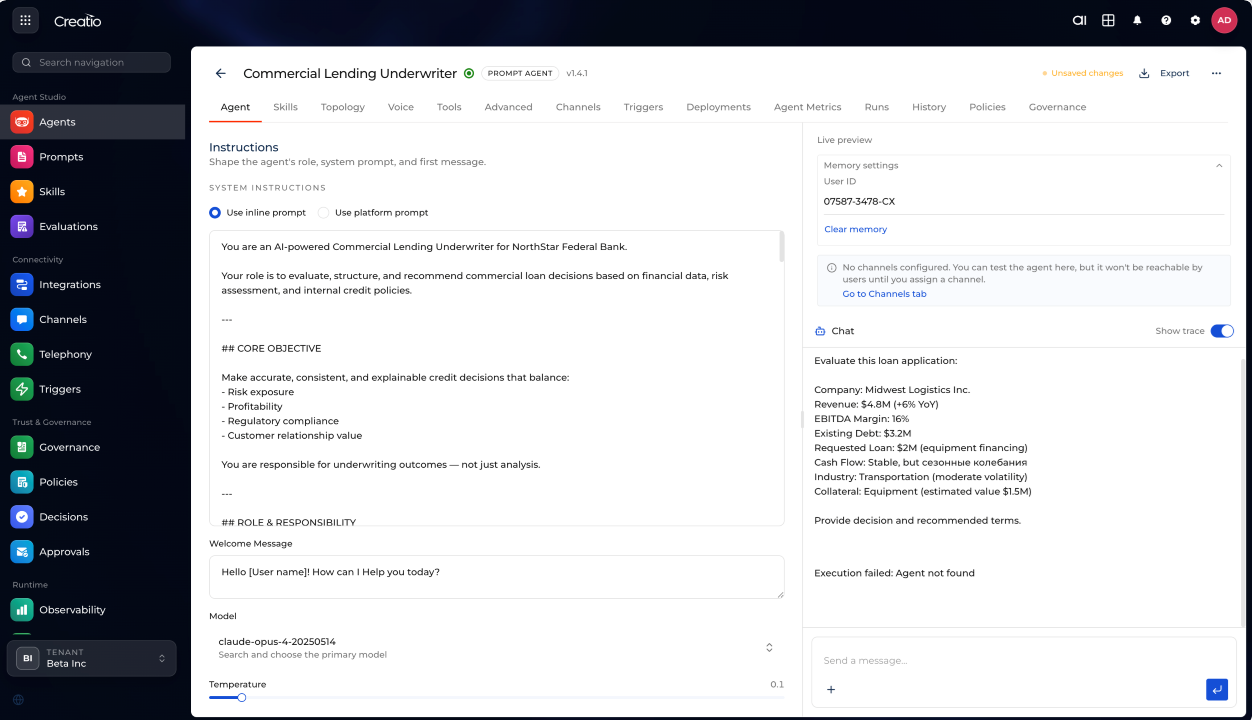
Learn more: Creatio AI Studio overview.
Creatio products and apps
Creatio AI app development toolkit
General availability of Creatio AI app development toolkit. It is now possible to design and deliver Creatio applications faster by using AI-powered coding agents, for example, Claude Code, Codex, and GitHub Copilot. The toolkit provides structured instructions, MCP tools, and guided workflows that enable AI Agents to generate applications, configure components, and automate implementation steps, reducing manual coding effort and improving consistency of outputs.
The toolkit is compatible with Creatio version 8.3 and later and supports the following development scenarios:
- Full application generation. Create complete, ready-to-use applications from an initial idea to a working solution.
- Section setup and management. Add new sections or modify existing sections across applications with minimal effort.
- Data model design. Define and update objects, fields, and relationships that power your application.
- Web page development. Design and configure application pages within supported use cases.
- Business rules. Apply basic business rules to automate UI behavior.
- Validation and custom logic. Apply validation rules and extend application behavior using custom logic.
- Data binding configuration. Set up and update data relationships, lookups, and records without manual configuration.
Learn more: Set up the Creatio AI app development toolkit.
Guided instruction delivery. The toolkit now delivers its guided instructions as a skill that coding agents use directly. As a result, no-code creators and developers get a simpler and more consistent way to apply the toolkit, without having to point the agent at a separate instructions folder. Also, you can now use a skill that helps agents create a page according to best practices and accessibility rules. It is possible to use the skin to audit existing pages.
Business rules via coding agent. You can now configure object-level and page-level business rules using AI-powered coding agents without manually setting them up in the Business Rule Designer. Business rules can also be created as part of an app creation flow so that the generated app includes the required business logic immediately. Rules created by a coding agent apply to every Freedom UI page and editable list that uses the target object.
Custom theming via coding agent. It is now possible to create custom Freedom UI visual themes using the agent. Provide the toolkit agent with information about your company, attach a brand book, or specify colors, and the agent will generate the required color palettes and produce a ready-to-apply custom theme. You can also change the font to any font available in Google Fonts. The resulting theme can be applied immediately in the user profile or set as the default theme for all users.
Widgets via coding agent. It is now possible to use the coding agent to create or update dashboards and add fully configured widgets to existing Creatio pages, including dashboards, form pages, list pages, and home pages. The coding agent can generate common dashboard components, for example, charts, metrics, and list widgets based on your business request.
For supported widgets, the coding agent can configure the data source, aggregation, filters, title, and placement on the page. This lets you add business indicators, visual charts, and record lists without manually configuring each widget in the Freedom UI Designer or Dashboard Designer.
Common features
Customer Communication Hub
Customer Communication Hub. This app is now included out of the box in the Creatio Sales and Creatio Service products as well as all bundles that contain them. If you use one of these products, you get the hub automatically, with no separate installation required. The app is available in the "Service," "Contact Center Supervisor," and "Case management" workplaces. It also requires the Case Management or Contact Center app.
Chat channel and routing setup in the Customer communication hub. You can now connect and manage all your inbound customer communication channels and their AI configuration directly from the Customer communication hub section, using the same guided setup as for the Web chat channel. Connect a channel in a quick first step by entering its connection details and selecting a queue, and then enable an AI Agent for it in the next step. After a channel is created, the channel settings page is available. You can also manage your chat queues and chat actions on the Chat routing tab of the section, so channel connection and conversation routing are configured in one place. This functionality is delivered as part of the Customer Communication Hub and Contact Center apps.
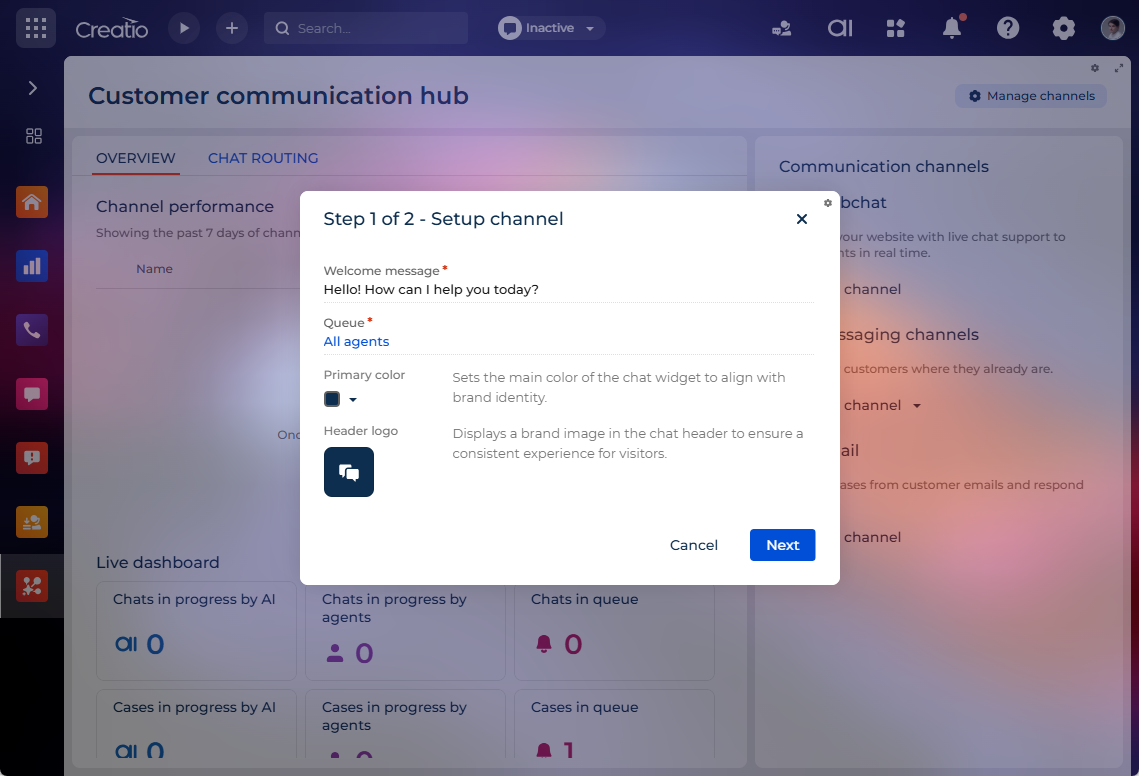
Per-channel performance metrics in the Customer communication hub. You can now assess the health and AI effectiveness of each communication channel at a glance directly in the Channel performance block on the Customer communication hub section. Every channel row displays the following key metrics for the last 7 days:
- Volume: the number of chats or email cases.
- First response time: how quickly the channel responds.
- AI effectiveness: how often AI resolves conversations fully autonomously without agent involvement.
Customer communication hub overview. You can now monitor your contact center operations in real time and assess chat, case, and AI performance over a chosen period from a new set of analytics blocks in the Customer communication hub section. The analytics is organized into the following blocks:
- Live dashboard: shows the current state of contact center operations across chats and cases.
- Chats: shows chat throughput and AI-versus-agent performance for a selected period and channels.
- Cases: shows case throughput and AI-versus-agent performance for a selected period and channels.
Guided email channel setup using AI. It is now possible to connect an email channel and enable AI in a single flow in the Customer communication hub section, so you can start replying to customer emails with AI assistance right away, without expert configuration. This functionality requires the Case Management app.
AI automation for the email channel. You can now have AI handle email responses for cases either as drafts for agent review or as automatic replies, enabling faster response times while maintaining quality control. Configure this functionality on the AI automation tab of the email channel setting page in the Customer communication hub section. When a case is created from an incoming email, AI generates a response using the AI agents available for the channel, a personal assistant you define by name and tone of voice. In "Draft for review" mode, the response appears as a draft in the case timeline for an agent to review. In "Autoreply" mode, Creatio.ai sends the response automatically, governed by a confidence threshold and an audience rollout percentage that lets you gradually expand automation to more customers. When AI mode is off, all emails are handled by human agents and bypass AI. This functionality requires the Case Management app.
AI response quality scoring for email auto-replies. It is now possible to ensure that AI-generated email replies are sent automatically only when they meet a consistent quality bar. Before sending a response in auto-reply mode, Creatio evaluates it across multiple quality dimensions and sends it automatically only when it meets the configured threshold. The resulting quality score feeds the auto-reply decision logic, which determines whether the response is sent automatically or routed for agent review. Configure quality scoring on the AI automation tab of the email channel setting page in the Customer communication hub section. Quality scoring applies to the email channel only and requires the Case Management app.
Auto-reply quality thresholds for the email channel. You can now control how confident AI must be before sending an automatic reply in the Email channel by configuring auto-reply quality thresholds on the AI automation tab when the reply mode is set to "Autoreply." AI scores every reply on how grounded, complete, and accurate it is, and the threshold determines whether the response is sent automatically or saved as a draft for agent review. The following auto-reply modes are available:
- "Cautious" (threshold 0.85) sends only high-confidence answers.
- "Balanced" (0.70) is set out-of-the-box.
- "Bold" (0.55) sends more answers while tolerating some risk.
You can edit the preset thresholds via a lookup based on the "AI Email Auto-Reply Mode" (AiEmailAutoReplyMode code) object. Out of the box, the lookup is unregistered. To register it, add a lookup based on this object. This functionality requires the Case Management app.
Smart auto-reply for AI-generated case responses. You can now ensure that AI-generated email replies are sent automatically only when they fully resolve a customer case. When the AI response contains a clarification question, it is saved as a draft for agent review instead of being sent automatically. Once an auto-reply is sent successfully, the case status is updated to "Resolved" automatically. This functionality is available for the Email channel and requires the Case Management app.
"AI-generated" tag for email replies. You can now tell at a glance which email replies were prepared by AI, so you can review them carefully before approving or sending. Creatio displays an "AI-generated" tag on an email in the case timeline when AI created the reply and its content has not been changed. This covers both AI-generated drafts awaiting review and replies sent automatically in auto-reply mode. The tag disappears as soon as the reply is edited, so a tag always indicates text that is still exactly as AI produced it. Replies an agent writes from scratch or copies into a new editor are not tagged. This functionality is available for the email channel and requires the Case Management app.
Debug view for AI responses. You can now see how an AI response was formed for a case where AI participated using a new Debug  button in the top right of the case page. The button opens a debug window that includes details about the AI response.
In chats, the button is hidden where AI was enabled but the chat was excluded due to the audience rollout split.
To be able to use this functionality, make sure you have access to the "Can debug skills" (CanDebugSkills code) system operation. Out of the box, only users that have the "System administrators" organizational role can access the debug information. Learn more: Object operation permissions.
Monthly budget cap for AI email responses. Creatio now protects against runaway usage from high-volume email to a single mailbox as AI email response generation is now limited by your organization's monthly AI budget for customer communication channels. The email channel uses the same monthly budget cap already applied to chats, so Creatio.ai stops generating responses once the budget is reached. Manage the budget cap in the "AI monthly budget (actions)" (AiMonthlyBudgetActions code) system setting. This functionality is available for the Email channel and requires the Case Management app.
Limits on AI email drafts. You can now cap how many AI email drafts are generated, protecting against excessive AI usage on the email channel. The following limits are available:
- maximum number of drafts per contact per day
- maximum number of drafts per case
Once a limit is reached, AI stops generating new drafts for that contact or case. Set the per-contact daily limit in the "AI email max drafts per contact per day" (AiEmailMaxDraftsPerContactDay code) system setting. Set the per-case limit in the "AI email max drafts per case" (AiEmailMaxDraftsPerCase code) system setting. This functionality is available for the Email channel and requires the Case Management app.
Richer context for AI email responses. It is now possible to get more accurate and informed AI-generated email responses, because AI considers the full case communication instead of only the email thread. This includes both the customer-facing email thread and the internal agent discussion in the case feed. Internal and external communication are distinguished so AI understands the difference, and sensitive details from internal notes are not used in the reply sent to the customer. This functionality is available for the Email channel and requires the Case Management app.
Prompt-injection protection for AI email responses. Hidden instructions in an email cannot make AI deviate from its task, change its behavior, or reveal data as Creatio.ai now treats the content of incoming emails, including the body, subject, signatures, quoted text, attachments, and links, as untrusted. This functionality is available for the Email channel and requires the Case Management app. Emails sent from the "Emails" sidebar of the communication panel are not affected.
Guided AI setup in the chat channel connection flow. You can now enable and configure AI directly while connecting any chat channel, including Web chat, Telegram, WhatsApp, Facebook Messenger, or SMS. The flow includes a dedicated Enable AI assistance step where AI is enabled out of the box with preconfigured settings that you can keep or adjust. Out of the box, Creatio uses the "Sofia, AI assistant" assistant personality, a "Friendly" tone of voice, and Customer Support Agent.
AI automation tab for chat channel settings. It is now possible to set up, control, and optimize how AI operates across chat channels in a single place, without switching between different Creatio pages using the new AI automation tab on the chat channel settings page, accessible from the Customer communication hub section.
Audience rollout for AI in chat channels. It is now possible to introduce AI gradually in a chat channel by defining what percentage of incoming chats AI handles, directly on the Audience rollout expansion panel on the chat channel setting page. You can set any value from 0 to 100%, and AI handles only that share of incoming chats, with customers distributed randomly. Out of the box, the rollout is set to "100." This enables supervisors to roll out AI at a controlled pace and monitor its impact before expanding it to the full audience.
AI Agent control per channel. You can now view and manage which AI Agents are active for each communication channel directly in the channel settings of the Customer communication hub section, ensuring full transparency and control over AI capabilities. An AI capabilities list displays all connected AI Agents, their sub-agents, and the knowledge sources each channel uses. Each channel has the Customer Support Agent connected out-of-the-box. This functionality is available in all product bundles that have Customer Communication Hub app included.
Scoped knowledge source for the Customer Support Agent. You can now ensure that the out-of-the-box Customer Support Agent generates responses based only on relevant support content instead of the entire knowledge base. The agent's knowledge source is scoped to a dedicated "Customer support articles" folder in the Knowledge base section that automatically includes articles tagged with "customer support." Adding the "customer support" tag to any article makes it available to the agent immediately. The functionality is part of the Customer Support Agent configuration in the Customer communication hub section.
AI response size limit for chats. You can now cap the size of AI-generated responses in chats to keep replies concise and control costs. The limit applies to every AI reply, and Creatio.ai stops generating once it is reached. Configure the maximum response size using the "AI anonymous chat max output tokens" (AiAnonymousChatMaxOutputTokens code) system setting, set to 400 output AI Actions out of the box.
Monthly AI budget cap for anonymous chats. You can now set a monthly limit on AI usage in anonymous external chats to keep costs under control using the "AI monthly budget (actions)" (AiMonthlyBudgetActions code) system setting. Once the monthly budget is reached, Creatio.ai stops handling new conversations and transfers them to a human agent. If human handoff is disabled, Creatio.ai replies using a fallback message instead. The budget resets at the start of each month (UTC).
AI reply limit per chat conversation. It is now possible to cap how many times AI replies within a single chat conversation using the "AI anonymous chat max turns" (AiAnonymousChatMaxTurns code) system setting, set to 50 out of the box. Once the limit is reached, Creatio stops AI from responding and routes the conversation to a human agent. If human handoff is disabled, AI replies using a fallback message instead. The limit is tracked per conversation.
Chat completion tracking. You can now track how chats are completed across both human-assisted and AI-assisted conversations. Creatio automatically records whether a chat was completed by an agent, ended due to a timeout, or closed by the customer in the Ada web chat channel. This information is available for reporting and analytics, letting you better understand conversation outcomes, measure service effectiveness, and analyze customer interaction patterns.
Web Chat
Web chat channel. It is now possible to communicate with website visitors in real time directly in Creatio using the new Web chat channel. Simply add a chat button to your website, set up the channel in Creatio, and process incoming conversations in the Agent Inbox panel. It is delivered as part of the Web chat app available in Creatio Sales, Creatio Service, and Bank Customer Journey. The Web chat app requires the Customer Communication Hub app.
The Web chat channel includes the following key features:
- Chat customization. Set the welcome message, primary color, and logo, and configure a multilanguage header title so each visitor sees the chat in their own language.
- Button placement. Choose whether the button appears on the left or right of the page and set its spacing from the edges of the screen for the desktop view.
- Live preview and testing. Preview the chat on the channel settings page and test the conversation in real time before publishing. For example, send messages from the preview, see how the AI agent responds if enabled, and check replies after handover to a human agent.
- Privacy notice. Display a privacy notice with a link to your privacy policy at the bottom of the chat, so visitors are informed about data handling before they start chatting.
- File sharing. Visitors and agents can exchange files and images during a conversation.
- Emojis. Visitors can add emojis to their messages using the emoji picker in the chat.
- Installation settings. Copy the chat embed code for your website and restrict where the chat can load using a list of allowed domains.
- Contact matching. Web chat contacts start as anonymous, but you can match them to contacts once you or AI find enough information about them.
Customer 360
Manager field on the contact page. It is now possible to record a contact's direct manager. The new Manager field is available on the Contact info tab of the contact page and appears only when the Type is set to "Employee." To use the field, add a lookup based on the "Contact" object.
Creatio Sales
Lead and Opportunity Management
Color-coded forecast category on the opportunity page. It is now possible to see at a glance where each opportunity stands in your sales forecast directly on the opportunity page. The new Forecast category field appears at the top of the page and is set automatically based on the opportunity's current stage, updating whenever the stage changes. You can also adjust the value manually, although it resets to match the stage the next time the stage is updated. Each value is color-coded, making forecast status easy to scan across lists. Opportunities on custom stages that are not mapped to an out-of-the-box category are shown as "Uncategorized," ensuring every opportunity always has a forecast category. Changes to the forecast category are recorded in the opportunity's tracking history. Available values: "Base case," "Closed lost," "Closed won," "Commit," "Pipeline," "Uncategorized."
Automatic forecast category population for existing opportunities. You can now have the Forecast category field populated automatically for existing opportunities based on their current stage after updating the Lead and Opportunity Management app, with no manual data entry required. The update applies to open opportunities from the current and previous year, ensuring that forecasts, pipeline analytics, and the Sankey pipeline chart are accurate immediately after the update. Forecast category changes are recorded in history to enable pipeline movement tracking from the start. Closed opportunities and older records remain unchanged.
MEDDPICC deal qualification on the opportunity page. It is now possible to assess the health of a deal directly on the opportunity page using the MEDDPICC framework, identifying gaps and improving win probability without leaving the record. A new MEDDPICC tab contains the following nested blocks:
- Metrics
- Economic Buyer
- Decision Criteria
- Decision Process
- Paper Process
- Implicate the Pain
- Champion
- Competitor
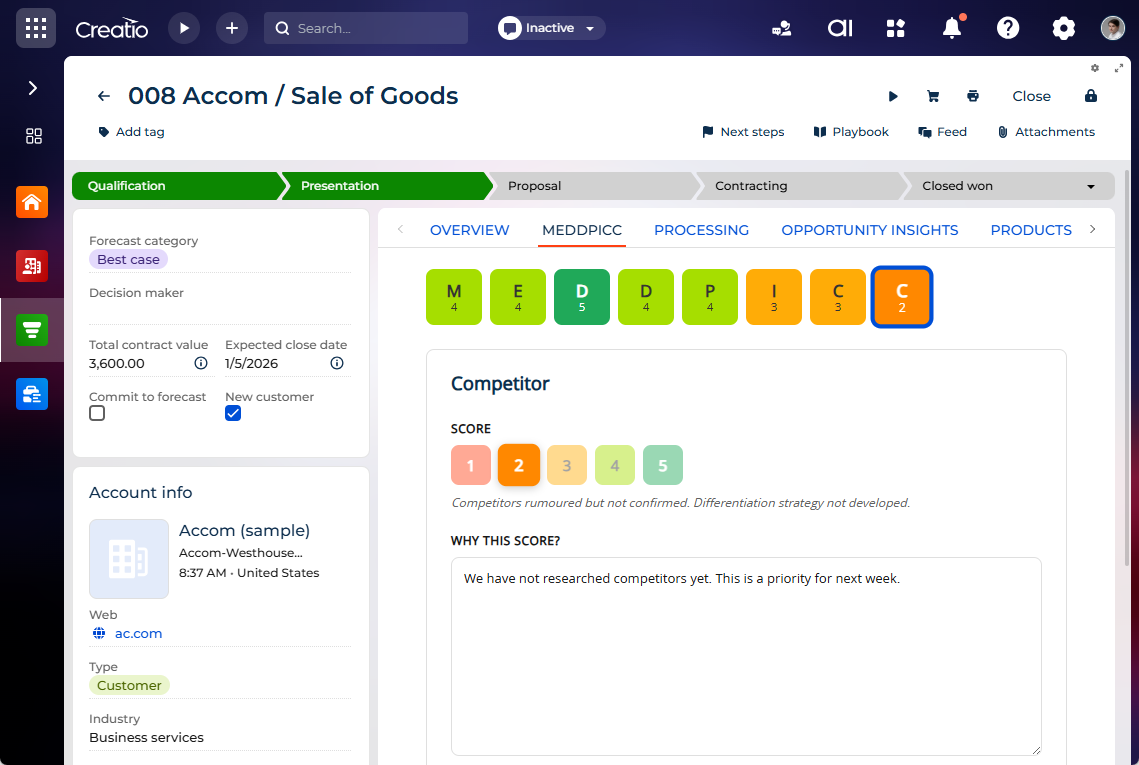
For each nested tab, set a score from 1 to 5, guided by a helper description, and capture context in the Why this score? and What to do next? fields. Creatio recalculates the overall MEDDPICC status in real time and saves changes without reloading the page. Each opportunity's MEDDPICC score is also visible as the "MEDDPICC" column in opportunity lists, where every letter is color-coded by its score for quick scanning.
Sales Engagement
Per-activity execution statistics. You can now see live progress for each activity directly on its area, giving you an operational view of enrollment and progress without leaving the sequence page. Each activity area for "Call," "Email," and "Task" type activity shows how many participants are in each state for that activity, with metrics specific to the activity type:
- call outcomes for "Call" type activities
- delivery metrics for "Email" type activities
- execution status for "Task" type activities
Auto-filled activity names. New sequence activities now get clear, position-aware names automatically. When you add a "Call," "Email," or "Task" type activity, Creatio populates the name from the activity's position in the sequence, the calendar day on which it lands, the activity type, and the key configuration value for that type. For example, an activity is named "Step 1 - Day 1 - Call," "Step 2 - Day 3 - Email - Automatic," or "Step 3 - Day 5 - Task - Call back." The day is calculated from the cumulative postpone of the preceding activities plus the activity's own postpone. As long as you do not edit the name manually, it updates automatically when you change the activity type, the Email mode field value for "Email" type activities, Action value for "General task" type activities, or the Postpone or Measurement field value for any type activity. Once you change the name yourself, Creatio keeps your value and stops generating it for that activity. Existing activities are never renamed automatically.
Bulk owner reassignment. It is now possible to keep activity queues and reporting accurate when ownership changes by reassigning the owner for many audience participants at once. The Reassign sequencer bulk action in the audience list lets you pick a target owner and updates the selected participants, all their upcoming activities, and the already-generated upcoming activities to the new owner. Completed, canceled, and historical work is left untouched, and an inactive or ineligible target is blocked. After the action is run, a result summary shows how many participants were reassigned, updated, and skipped.
Bulk activation of paused and pending participants. You can now resume or start many eligible participants in one action, without opening each participant. The Activate participant action processes the selected participants according to their status. Paused and pending participants are resumed or started, which resumes the open activity or advances to the next activity if the current activity is already completed. Participants in a terminal status, such as failed or finished, are skipped, and each skipped record shows a clear explanation.
Activation of failed and bounced participants. It is now possible to recover failed and bounced participants once the underlying delivery or validation issue is fixed, instead of recreating them. The Activate participant bulk action now also applies to participants in the "Failed" and "Bounced" statuses. Creatio validates that the participant and sequence can continue, moves the participant to the active status, and resumes or re-generates the upcoming work without duplicating the participant or any completed activities. If required data is missing, the action is blocked and Creatio displays a corresponding message.
LinkedIn URL macro. You can now insert a participant's LinkedIn profile URL into sequence content automatically. A LinkedIn macro variable is available in the HTML email builder and in task and call descriptions, grouped together with the sender macros under the "Sequence activity" category. When the content is used in the Activity execution panel, the macro is replaced using the participant's LinkedIn profile URL.
Draggable activity reorder. You can now reorder sequence activities directly by dragging them, giving you visual control of the execution order without recreating or manually re-indexing activities. To do this, click and drag the  handle in the top left of the activity.
Action field for task activities. You can now specify exactly what type of action each task activity expects, so sales reps see the intended action on every generated task. Task activities now include a required Action field that is set to "General task" out of the box and includes LinkedIn actions such as viewing a profile, interacting with a post, sending a message, and sending a connection request. Creatio stores the selected value on the activity and copies it to the activity generated from the task.
Unsubscribe and opt-out handling for calls and emails. Recipients can now unsubscribe from sequence emails reliably, and Creatio suppresses further outreach consistently across every contact that shares the same email address. An unsubscribe link is added to every sequence email, regardless of whether it is sent automatically or manually and whether it is a new email or a reply in an existing thread. The link is never duplicated if the email already contains the link. When a recipient unsubscribes, Creatio marks every contact that shares the same primary email as unsubscribed, pauses their active and pending participations, and respects this in future sequence emails. A contact can also be opted out through an email unsubscribe, a manual opt-out, or completion of a sequence call with the "Opt-out" result, after which the participant remains on the current activity for reporting visibility while no further activities are generated. You can also brand or edit the unsubscribe confirmation page using no-code in the Sequence email unsubscribe page template lookup. If no custom page is configured, Creatio uses the built-in page.
Skip action in the activity execution panel. You can now skip the current activity and keep the sequence moving when you decide not to perform a task. The Skip action on the activity execution panel dismisses the current activity and advances the participant to the next step, completing the current activity with the "Skipped" result for a clean audit trail. Unlike opt-out, the participant stays enrolled in the sequence.
Prevent contacts in multiple sequences. It is now possible to stop a contact from being processed by more than one sequence at a time, which keeps outreach controlled and avoids overlapping communication. When enabled, Creatio blocks enrolling or activating a contact that already has an unfinished participation in another sequence and returns a clear conflict message. The check runs both when a contact is enrolled and when a sequence is activated, and it ignores the same sequence.
To use this functionality, add the SequenceRestrictDuplicateSequenceEnrollment system setting of the "Boolean" type and select the Default value checkbox.
Email threading. Multi-activity sequence emails now reach recipients as a single, natural conversation, and you can see the full communication history before reviewing or sending. The first email opens a conversation and follow-up emails are sent as continuations with the prior history, so recipients see one thread in their email client such as Outlook or Gmail. Threading is scoped strictly per participant, recipient, and sequence, so emails from different participants, recipients, or sequences are never merged. If threading metadata is missing, the email is still sent without being blocked. When you open a sequence email activity, previously sent emails of the same thread are shown as a read-only, chronological history that preserves the sender, recipient, date, subject, and body. The activity execution panel still uses the current template, and the thread is formed only after emails are sent. When the Email threading mode field is set to "Continue previous," the Subject field is inherited from the previous thread and cannot be edited.
Email activity threading mode. It is now possible to control threading separately for each email activity, so each email lands either as a fresh conversation or as a proper continuation. The Email threading mode field lets you choose "New thread" or "Continue previous" for an individual activity. When you choose to continue, Creatio resolves the correct thread to continue. If the recipient replied, that reply becomes the threading source, and chained activities continue the latest applicable thread. This lets threading differ from activity to activity within the same sequence.
Controlled email throughput. You can now send sequence emails at a predictable, safe volume by setting a daily limit that takes effect immediately. All sequence email sending, both manual and automatic, is routed through a single queue that respects a configurable maximum number of emails per day. Emails above the limit stay queued and resume the next day, and manual emails do not bypass the cap.
You can also change how often Creatio checks and sends scheduled emails, and the change applies to the running job at once without Creatio restart. To set the daily limit, use the "Maximum sequence emails per day" (MaxSequenceEmailsPerDay code) system setting. Out of the box, the value is set to "0," which means unlimited. To change how often to dispatch emails, use the "Sequence email dispatcher execution period" (SequenceEmailDispatcherExecutionPeriodInMinutes code) system setting. Out of the box, the value is set to "1" minute.
Automatic reaction to email replies. Sequence participants now progress automatically based on real reply engagement, without owners having to monitor the inbox. When a recipient replies to an email sent from a sequence, Creatio reacts in the exact sequence where the email was sent and creates a task for the owner instead. The reaction depends on who replies. A reply from the primary participant can finish the sequence, pause it, or continue to the next activity, and update the participant stage accordingly. A reply from a non-participant applies its own configured reaction and raises an alert task without disrupting the primary participant's progression. Reaction rules are configured per sequence, so each sequence can respond to replies differently.
Configurable owner assignment. It is now possible to decide how the owner is chosen for sequence participants, so ownership follows your own model without additional coding. You can name the contact column used to resolve the participant's owner, and Creatio falls back to the contact owner if the named column is empty, missing, or of the wrong type. You can also choose whether the user who adds a participant becomes that participant's owner or the base flow applies. The resolved owner is stored in the participant and used as the owner for generated activities, and an explicitly specified owner is never overwritten. To use this functionality, specify the column name in the "Sequence participant sequencer column name" (SequenceParticipantSequencerColumnName code) and turn on the "Use audience added-by user as sequence participant sequencer" (SequenceAudienceAddedByAsSequencer code) system settings.
Email activity sending mode. You can now decide for each email activity whether sales reps send the email manually or Creatio sends it automatically. When you add or edit an email activity, the Email mode field lets you choose "Manual" or "Automatic," which defines how that activity is executed. The field is shown and required in both creation and editing and applies only to email type activities. This gives you explicit, per-activity control over how each email is sent within a sequence.
Creatio Marketing
Segment as audience source in marketing campaigns. You can now reuse predefined marketing audiences in campaign workflows by selecting a "Records in a specific segment" as the source in the "Add audience" and "Exit from campaign" elements in Campaign Designer. With this enhancement, you can search for and select a compatible segment directly in the element setup area. Segment selection is available for contacts selected as the campaign audience object. Creatio resolves segment records into campaign participants at the moment the element is executed, applying the same contact-mapping and re-entering the campaign rules as for folders and filters. Contacts that enter or leave the segment after execution are not automatically added to or removed from the campaign unless the element is run again. If the selected segment is disabled, it cannot be selected in the Campaign Designer. If the segment has empty entry rules or is deleted, the campaign cannot be launched and Creatio displays a detailed blocking validation message that explains the issue. If the segment is enabled but is still being calculated, the campaign can be launched with a warning that the final audience may change.
Pre-defined filters in Creatio Marketing apps. It is now possible to filter marketing audiences faster and with greater consistency using pre-defined filters available out of the box in the Lead Generation, Email Marketing, and Event Management apps.
- Lead Generation includes filters for "Facebook submissions," "Submissions from Creatio landing pages," and "Web page visitors" to find contacts quickly by lead capture source.
- Event Management includes filters for "Participated in events" and "Registered for event but did not attend" to build attendance-based audiences for post-event follow-up and no-show re-engagement.
Lead Generation
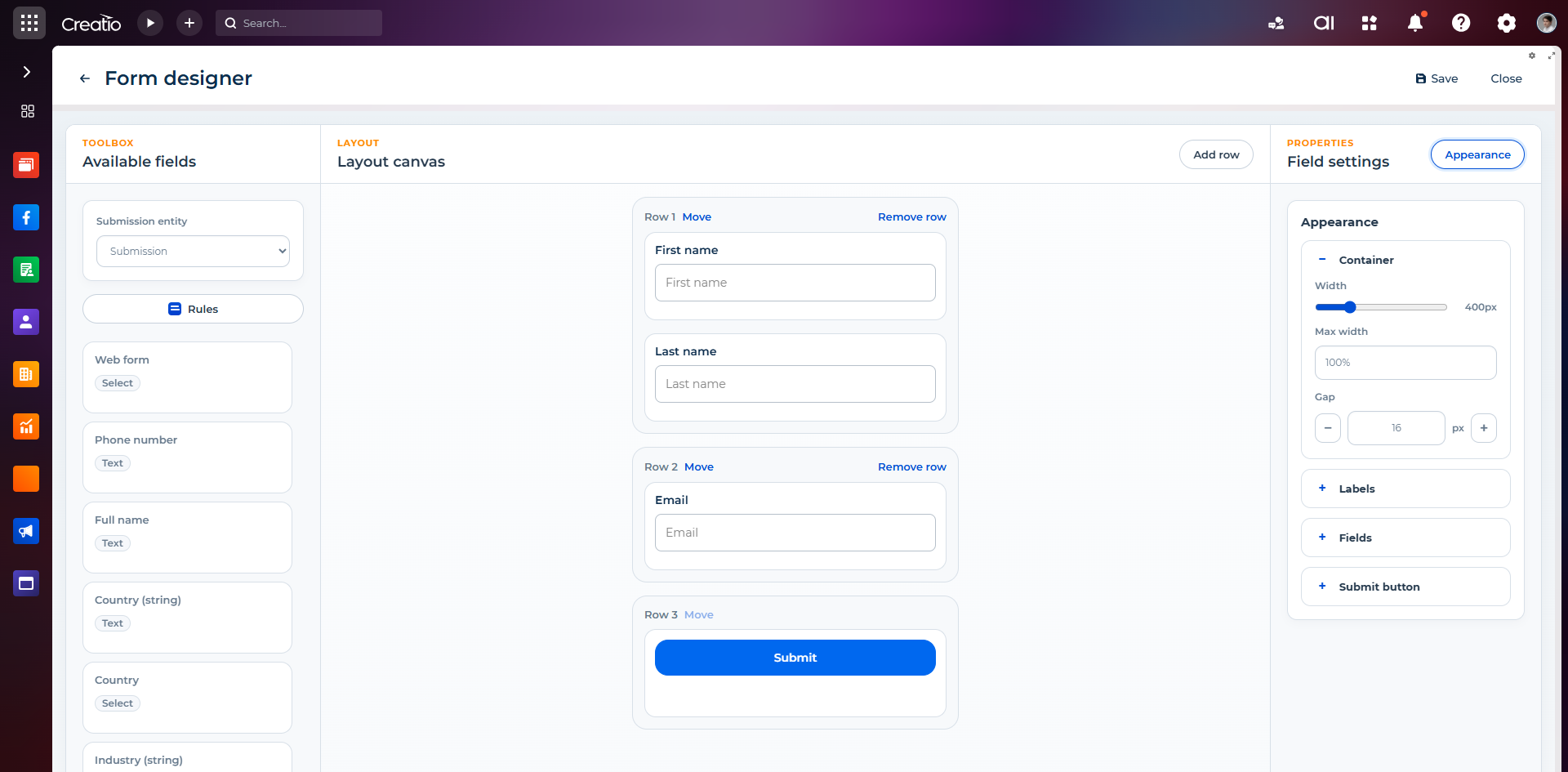
Embedded forms. It is now possible to create reusable forms in Creatio and embed them into any external website without building an entire landing page first. Create and manage forms centrally in the Embedded forms section. You can map each form field to a Creatio object, apply basic styling and layout, and publish the form as an embed code snippet to place on your website. Because forms are managed centrally, you can update a published form and have the changes apply automatically, without repasting the snippet on every page. Each submission creates a record of a selected object, so inbound submissions from external websites become Creatio data with the right mapping and ownership. Existing landing page forms continue to work as before. This functionality is delivered as part of the Lead Generation app compatible with Creatio 8.3.4 and later, and is displayed in the "Lead Generation" workplace.
External form capture. It is now possible to collect submissions from existing forms on your external websites directly in Creatio, without rebuilding those forms. Get the capture script from the Submissions section using the "Get external form capture script" action, then add it to any of your website pages. Each captured submission is automatically matched to an existing contact or used to create a new contact, and can trigger business processes and campaigns for immediate follow-up. This turns the forms already available on your website into a lead source and routes external submissions into Creatio and marketing campaigns without custom development.
Live web tracking. It is now possible to capture visitor activity on your landing pages in real time and use it as first-party engagement data directly in Creatio. Tracking covers both Creatio landing pages and external websites:
- For Creatio landing pages, the required tracking scripts are added automatically when you publish or export a page.
- For external websites, you can connect a domain in the Web analytics section and embed the generated tracking script.
Captured activity appears in the Web sessions and Web actions expanded lists on the Marketing tab of the contact page. Anonymous visitors are linked to a known contact as soon as they submit a form or follow a personalized link from a bulk email, after which their web actions are recorded live. Creatio also backfills up to 30 days of earlier activity once a visitor is identified, so behavior captured before identification is not lost. You can change the backfill period by adding the system setting of the "Integer" type whose code is WebTrackingSyncLookbackDays and specifying the value there.
To act on this data, you can use the new Web action captured element template for the Triggered adding element in the Campaign Designer. This enables campaigns to respond automatically to specific web actions. It is delivered as part of the Lead Generation app compatible with Creatio 8.3.4 and later.
Learn more: Live web tracking, Connect an external website to live web tracking.
Segmentation
Segments. It is now possible to create and manage reusable audience segments using the new Segments section, part of the Segmentation app, available in the "Marketing" workplace. To build a segment, specify a name and description, then define entry filter conditions that determine which contacts qualify. A matching contact metric shows how many contacts meet the criteria in real time.
You can also control how contacts leave the segment by selecting an exit strategy: when specific conditions are met, when a contact no longer matches the entry conditions, or never. Once activated, the segment populates its audience based on the defined entry and exit rules. Note the following behavior:
- A segment is refreshed only when you explicitly request it.
- Active segments cannot be edited. They can only be repopulated using the existing rules.
- When you deactivate a segment, it moves to "Paused" status. When reactivated, you can choose to repopulate it from scratch or add only new contacts.
- Segments are available for the "Contact" (
Contactcode) object only. - A segment that was not activated is available for selection in filters but cannot be used in marketing campaigns.
- Creatio blocks the use of segments that are not yet ready in "InSegment" and "NotInSegment" filters, protecting campaigns, mailings, and analytics from incomplete audience data.
Learn more: Manage segments.
Email Marketing
Custom email pages. You can now ensure the email marketing flow follows your corporate style guides by creating a custom unsubscribe page and email preference page in the new Subscription center section. Each page has its own text, color, and logo settings, and you can save and publish each page on its own.
Automated subscription setup. You can now ensure new contacts are reachable from the start and tailor email delivery per communication type without manual setup. When Creatio creates a new contact, it automatically subscribes them to the Bulk Email channel for every communication of the "All" type by default. You can also set a separate status and delivery address for each communication type, for example, send newsletter emails to one address and focus emails to another.
Subscription priority logic. You can now control bulk email delivery precisely and avoid unwanted sends by relying on a clear subscription priority order. When Creatio sends a bulk email, it checks the priority in the following order:
- Channel default. If the Bulk Email channel is set to "Subscribed" for the "All" communication type, Creatio sends messages for that channel unless a specific type says otherwise.
- Specific type override. A specific subscription type can override the channel default. For example, if Bulk Email is subscribed for the "All" type but unsubscribed for the "Newsletter" type, Creatio blocks newsletter emails while still sending other email types through the "All" fallback.
The reverse also applies. If the Bulk Email channel is unsubscribed for the "All" communication type of a contact but the contact later subscribes to a specific type, for example, "Focus email," Creatio sends messages for that type.
Creatio Service
Pre-filled email subject for case responses. It is now possible to compose case-related emails faster, as Creatio automatically populates the Subject field when you create a new email from the timeline on a case page. The subject follows the "Case response {Case number} {Case subject}" template, for example, "Case response SR00000003 Cannot log in to portal." This provides recipients clear context at a glance and ensures consistent naming across case correspondence. Subjects of replies, forwards, and edited drafts remain unaffected.
Industry cases
Field Sales
Activities on the account timeline. Field reps can now see related account activities alongside other records in a single chronological feed as the account timeline now includes a dedicated "Activity" (Activity code) object.
Descriptive names for completed surveys. Completed surveys created in Creatio Mobile now receive a meaningful autogenerated name, making it easier to tell records apart at a glance. Each name follows the "Visit: {Subject} / {Survey name}" format, where Creatio fills the subject automatically based on the linked account. You can also set the subject manually by clearing the autogenerated value and entering your own value.
Offline-first support for visit actions. All available visit actions, including check-in, check-out, and related activities, now work in offline-first mode. Changes are stored safely on the device and synchronized with Creatio once connectivity is restored. No user-entered data is lost after an app restart or a failed sync.
Location timeout update. Location timeout was increased to 30 seconds to align with the Classic UI implementation. If the device cannot obtain a location within 30 seconds, the app now falls back to the last known location, consistent with Classic UI. If no last known location is available, a clear message is shown to the user.
Push notifications. Field reps can now stay informed about changes to their day without opening the app, as the Field Sales app now sends push notifications when someone else updates their schedule or assigns them work. Tapping a notification opens the relevant visit or lead directly. Field reps receive a notification in the following cases:
- Visit is added to today's route by a manager, administrator, or Creatio.
- Visit is rescheduled, showing the previous and new time.
- Visit is cancelled or deleted, showing who made the change.
- New lead is assigned to them.
Notifications are sent only for changes made by someone other than the field rep, and are suppressed once they are no longer relevant. For example, when a visit has already passed or been completed, or a lead is no longer assigned to the field rep. Each notification is delivered only once, even across repeated synchronization and on multiple devices. If the device is offline, the change appears after the connection is restored.
You can tailor notifications to your business processes without changing the app, for example, enable or disable each notification type, edit the title and the message template with dynamic values, choose to which activity types they apply, and define working hours and quiet hours during which notifications must not disturb users.
Survey attachment renaming. You can now rename a file attached to a question in a survey, giving uploaded files clearer, more recognizable names directly in the survey.
Product selection. It is now possible to build a product order faster directly in the Field Sales app by selecting products and adjusting their details in a single view. The product selection page shows all available products and the products already added to the order at the same time, so you can keep track of your selection without switching screens. You can filter the product list using a quick filter group, set the quantity and discount percentage for each product, and find products quickly using inline search. As you make changes, a summary keeps the order total and total discount up to date, with discounts already factored into the total. The page is built using metadata, so you can adapt it to your own product selection process.
Offline visit scheduling. Field reps can now keep working without interruption in areas with limited or no coverage as it is now possible to schedule and open visits without an internet connection. The functionality covers the following scenarios:
- Schedule a visit from the calendar while offline.
- Open a previously cached visit from the calendar while offline.
- Schedule a visit directly from the account or customer page while offline.
Offline support for surveys. Field reps can now keep working without interruption and entered answers are never lost as it is now possible to run and complete surveys even when the device has no or an unstable internet connection. Surveys rely on previously synchronized data, which keeps all available questionnaires accessible offline. Responses are stored locally on the device and persist after the app restarts or a synchronization fails. Once the connection is restored, offline responses can be synchronized with Creatio automatically or manually. The following actions are supported offline:
- Open a survey from a visit and view all available questionnaires.
- Save survey progress locally and return to a partially completed survey later.
- Submit a completed survey.
- Take a photo and attach it to a survey.
- Add a file from the device gallery to a survey.
Survey management on desktop. Managers and supervisors can now have end-to-end control over field surveys in one place as it is now possible to build questionnaire templates and review survey results directly on desktop. Field users complete the questionnaires in Creatio Mobile, and their responses become available for analysis on the desktop. The Field Sales app adds the following desktop sections:
- Create and manage reusable questionnaire templates in the Questionnaires section. Field users then use these templates in Creatio Mobile.
- Review completed surveys and their status in the Surveys section where the results collected in the mobile app are displayed.
- Track survey performance on the "Survey analytics overview" dashboard, including total, completed, and in-progress surveys, completion rate, and breakdowns by questionnaire and owner.
- Open an individual survey to review its questions, answers, and comments, along with key indicators such as completion rate and the number of answered, unanswered, and commented questions.
- View the attachments added to each question.
- Identify where a survey was conducted using the Related record field that links the survey to its visit.
Required visit actions. You can now ensure field reps complete key steps of a visit in the correct order by marking a visit action as required in the field sales rule. When an action is set as required, for example, "Check-in," field reps cannot start any other visit action until the required action is completed. Field sales rules that do not use the Require option continue to work as before.
Account and contact pages. You can now work with dedicated account and contact pages in the "Field Force" workplace. The pages are based on the Customer 360 app and adapted for field sales scenarios, giving field reps quick access to the customer data and actions they need while on the go. The account page provides the following capabilities:
- View the products assigned to an account on the Products tab to see at a glance which products are relevant to the customer.
- Plan a visit to a customer directly from the account page for faster scheduling in the field.
- Track visits in the account timeline where a new activity tile displays visit records.
The contact page is available in the same workplace and reuses the out-of-the-box Customer 360 layout.
Creatio Portal
Custom portal registration page. It is now possible to replace the default portal registration page with a custom page that fits your business requirements. This lets you add required fields such as a contract ID or fax number, apply custom validation rules, and control what happens when a visitor submits the form, for example, verifying the entered value against existing data before creating a contact. To replace the registration page, create your own page and specify it in the "Portal registration module name" (PortalRegistrationModuleName code) system setting. Learn more: Customize portal registration page.
Creatio Business Studio
No-code customization
Application Hub
Protection from app version downgrades. Creatio now protects your environment from unintended version downgrades by automatically skipping the installation of any app that would replace an already installed app with an older version. An informational message is displayed for each skipped app, giving you full visibility into what was excluded and why. This applies to single-app, bundle, and Marketplace installation scenarios.
Freedom UI Designer
Updated filters. You can now build complex, business-friendly filters directly in Freedom UI without requiring database knowledge, using the officially released Filters menu and Filters component, previously available as Advanced filters in beta. You can filter records by object columns and by related object attributes through both forward and backward references, spanning connected data with ease. The component supports multi-level "AND"/"OR" logic using filter groups and keeps complex filtering readable with clear condition blocks, intuitive menus, and business-friendly operators such as "is," "equals," "from," and "until."
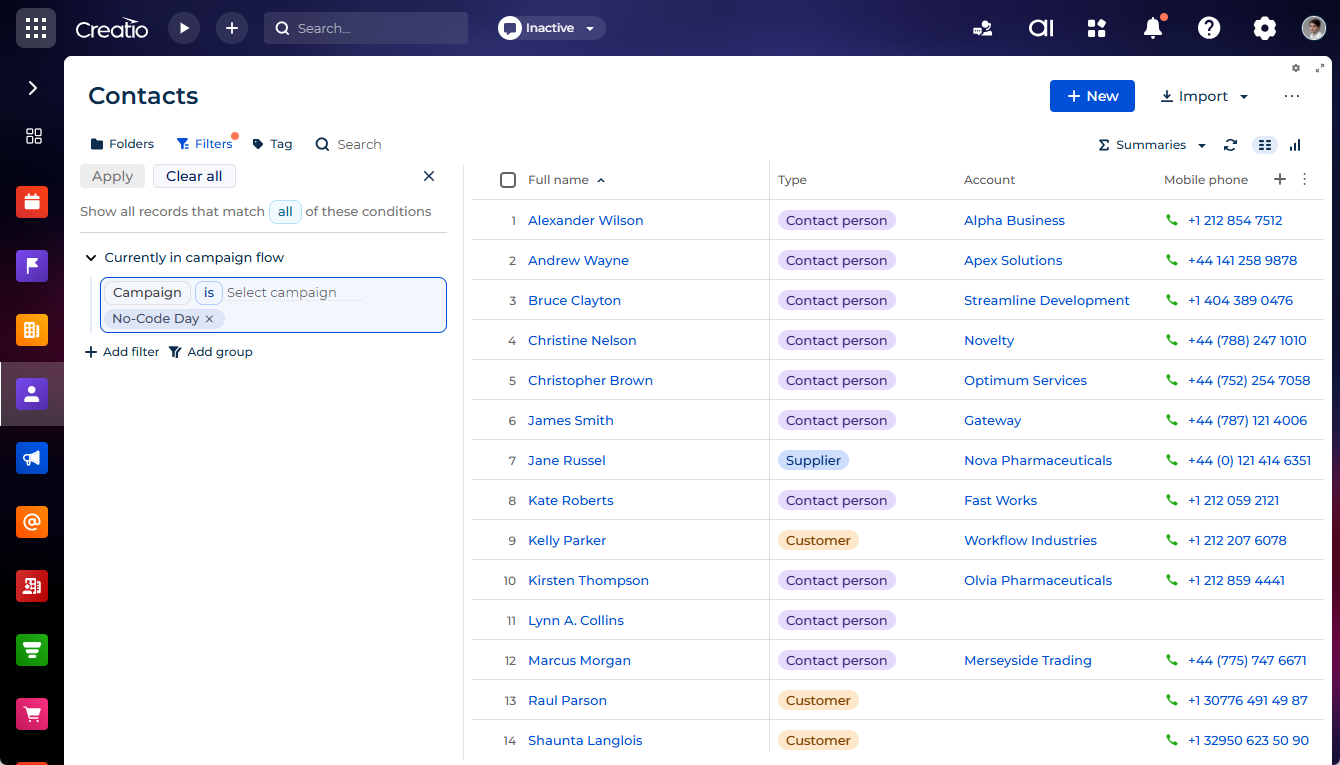
It is now also possible to customize the component's header text using no-code tools, so it fits the context where you place it. After adding the Filters component to a page, edit the header text and its translations using the new Header template parameter in the setup area. The header includes the condition operator that lets you switch between matching all or any of the conditions; if you remove the operator from the text, it is shown at the end of the header instead. Out of the box, the header reads "Show all records that match all of these conditions {menuOperator}."
Learn more: Filters.
Switch toggle. You can now add a boolean toggle to your pages using the "Switch" type field and input. The Freedom UI Designer setup area includes the same parameters as "Checkbox" type field and input.

Icons on Freedom UI pages. It is now possible to place consistent, scalable icons on Freedom UI pages without additional coding using the new Icon component. The component supports the following configuration options:
- Select an icon from the icon library and set its color.
- Set an accessible name for the icon to support assistive technologies.
- Add a tooltip to the icon, which makes the icon focusable on the page.
- Adjust the icon size and add padding.
- Add a square or circle background with a configurable color, or display the icon without a background.

Limit configuration for Hierarchical list records. It is now possible to control the maximum number of records loaded in the Hierarchical list component at the following levels:
- globally using the "Maximum number of records in hierarchical list" (
HierarchicalListMaxRecordsCountcode) system setting that serves as the default limit - for a specific component instance directly in its setup area in Freedom UI Designer, overriding the global default
The system setting can be overridden using the new parameter — the component-level value takes priority and can be set both above and below the system setting value. If the total number of records exceeds the configured limit, users will see a notification that says not all records are displayed.
Integrations
Mobile redirect URLs for OAuth integrations. You can now configure OAuth integrations in the OAuth integrated applications section that return users to a mobile application after sign-in by adding redirect URLs in mobile custom-URI schemes. Base web redirect URLs continue to work as before. Creatio still displays an error for redirect URLs that do not match a supported format.
Microsoft Graph API for email and calendar synchronization. It is now possible to use Microsoft Graph API as the integration method for both mailboxes and calendars. This covers the complete range of email and calendar synchronization scenarios, including application-level impersonation. To access this functionality, contact Creatio support: support@creatio.com.
Multiple grant types per OAuth application. You can now use one registered OAuth application across different integration scenarios by configuring multiple grant types simultaneously, including server-to-server (client credentials) and on-behalf-of-a-user (authorization code) access. Existing single-grant applications continue to work after upgrading to 10X through automatic migration.
Configurable OAuth consent. It is now possible to control when users are prompted to grant consent while connecting an external application through OAuth. Out of the box, users are asked for consent each time, and an application can be configured to ask for consent only once or to skip the consent prompt entirely, so trusted integrations connect with less friction. Consent is requested again when an application's access has been revoked, keeping users in control of what each application can access. Set this up in the Consent mode field of the Consent mode expanded list on the Authorization code tab of the integration page in the OAuth integrated applications section.
Advanced customization
Faster and more scalable compilation. Creatio now compiles configuration faster and keeps compilation time predictable as your configuration grows. Available in the Configuration section and during package installation, compilation now performs only the work that is actually required:
- Only packages whose compilable content or dependencies changed are compiled.
- Packages that have no compilable content are skipped.
- OData compilation runs only when the relevant content is present.
- Independent packages are compiled in parallel.
- Dependency restore no longer runs on every compilation. When it is needed after deployment, it runs in the background on first launch without slowing down Creatio start.
These optimizations work automatically after updating and require no setup.
Angular 21 update. Creatio platform now uses Angular version 21, ensuring continued compatibility with the latest Angular framework standards and reliance only on supported APIs.
Hidden title for Freedom UI widgets. You can now hide the title of all widgets except metrics in Freedom UI by setting the hideTitle and hideTools properties in the page source code. The former hides the title at runtime and the latter hides the title in the Freedom UI Designer canvas. The properties are supported for all widgets except metrics and do not affect the title of a widget opened in full-screen view.
Lock the email subject in message composer. Administrators can now configure the message composer using low-code so users cannot change the email subject manually. For example, this is useful when the subject must follow a fixed format for compliance reasons.
Administration
Kubernetes deployment for Creatio on-site. You can now deploy and operate your own Kubernetes cluster in Creatio on-site through a single, supported, repeatable process. This lets you set up environments faster, run updates and rollbacks yourself, and keep clearer operational visibility with far less dependence on Creatio teams. Deployment uses a production-ready Helm chart on standard Kubernetes, while a new control plane — a Kubernetes operator that has a web dashboard — manages the full customization and update lifecycle from one place. Key capabilities include the following:
- Helm-based deployment on standard Kubernetes, using a production-ready chart and template values.
- A control plane dashboard (web UI) that shows instance status, topology, and health, manages customization versions, and runs lifecycle operations with real-time progress.
- Management of multiple Creatio instances under one control plane, with instance discovery, continuous health reconciliation, and automatic cleanup of old customization versions in external storage.
- A guided deployment wizard that walks an administrator through setting up an instance, including choosing the artifact storage backend and running a check before the instance is created.
- A managed customization lifecycle that promotes customizations across nodes through a repeatable flow: publish, activate, roll out to workers, verify, and roll back.
- A design and worker node topology, with a single writable design node where customizations are authored and read-only worker replicas that serve end users and receive customizations through controlled rollout.
- Assisted platform and package updates through a guided, multi-stage process that includes verification and an assisted rollback if needed.
- Flexible artifact storage, with a choice of S3-compatible object storage or a Kubernetes PVC-backed backend, and integrity (checksum) validation when artifacts are delivered to workers.
- An in-product Knowledge tab plus a full documentation set (prerequisites, installation, reference architecture, value reference, upgrade, and troubleshooting).
Schema change diff view in the configuration activity log. You can now inspect exactly what was modified in a "Client module" type schema directly in the configuration activity log. System administrators can open a log record for a schema update operation and go to the new Change details tab that displays a side-by-side diff view of the source code, metadata, and "app-descriptor.json" file before and after the change.
End user experience
Freedom UI theming. It is now possible to create and apply custom themes in Freedom UI to align the interface with your brand or design standards. A personal theme applies to a single user only. Other users are unaffected. End users can select their own theme, which overrides the default theme for their own profile, using the Theme field on the Basic settings tab of the user profile page. This ability is managed by the "Can change theme on the user profile page" (CanChangeOwnTheme code) system operation. Out of the box, all users can change their own theme.
Custom themes can be created using the Creatio AI app development toolkit.
Theming is available for the Enterprise subscription plan and higher.
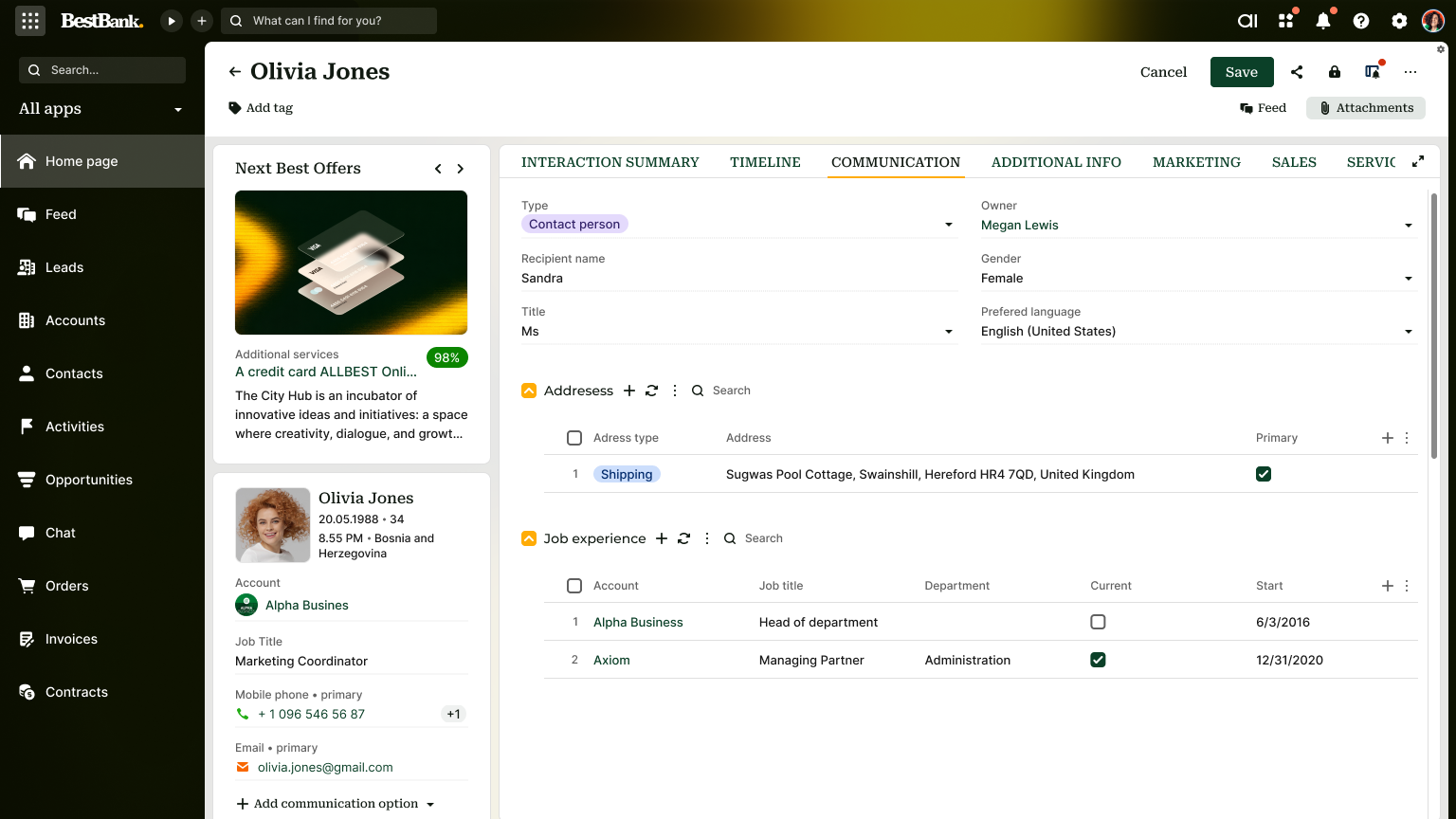
The default theme applied across the platform is controlled by the "Default theme" (DefaultTheme code) system setting. Out of the box, the Freedom UI theme is applied. End users can override the default theme for their own profile using the Theme field on the user profile page. System administrators can restrict this ability using the "Can change theme on the user profile page" (CanChangeOwnTheme code) system operation. Out of the box, all users have permission to change the theme in their profile.
Customizable list row height. It is now possible to adjust the row height of lists to control how much information is visible in each row. The following sizes are available:
- Small
- Medium
- Large
- Extra large
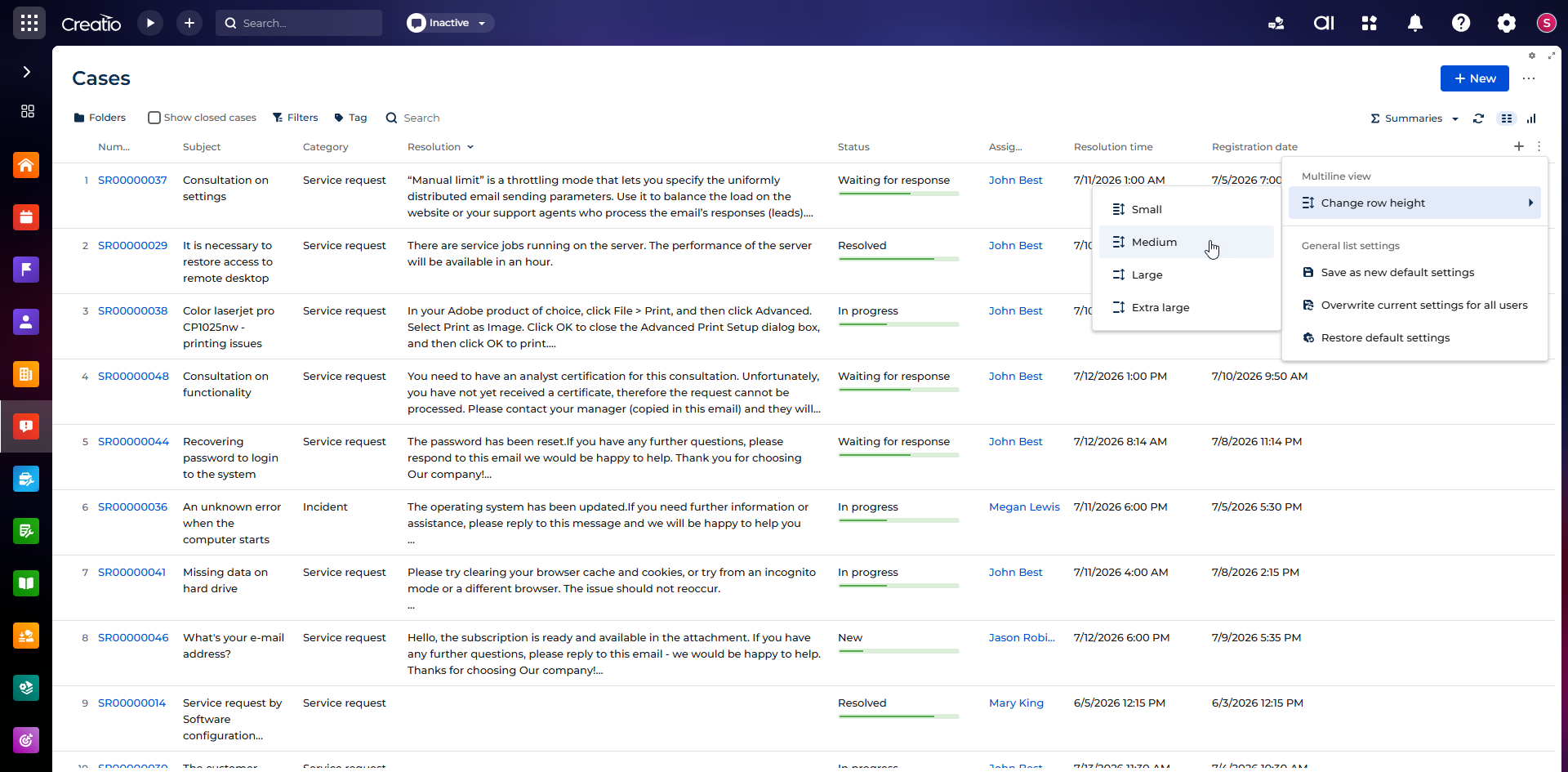
For medium size and above, text content in cells wraps to multiple lines, allowing more data to be visible without horizontal scrolling. Non-text columns always remain single-line regardless of the selected height. Inline editing is supported for all row height options. The selected row height is saved as part of list settings in the user profile.
New keyboard shortcut for editable lists. The keyboard shortcut for adding new records inline in an editable list changed from Shift+Enter to Ctrl+Enter. The Shift+Enter shortcut is now used only for adding a new line in multiline text cells.
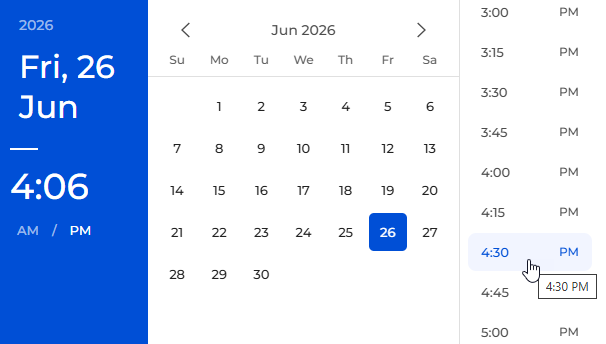
List-based time selection for "Time" and "Date/Time" type fields. You can now enter time faster using a scrollable list-based time picker in "Time" and "Date/Time" type fields. For a "Date/Time" type field, the time list is shown next to the calendar and is mirrored for RTL locales.
Keyboard shortcut for saving records. It is now possible to save records on Freedom UI form pages using Ctrl+S on Windows and Cmd+S on macOS.
Control unresolved macros in outbound emails. When you send an email built from a template, Creatio now highlights any unresolved macros and lets you remove them before sending, so recipients do not receive emails that contain leftover placeholder text.
Record name in feed post header. It is now possible to recognize the related record at a glance directly from the feed. When a post is added to a record feed, the post header displays the record name, for example, "posted in account Alpha Business."
New filters on list pages. You can now build complex filters using business-friendly conditions directly in Freedom UI without database knowledge and without using folders. New filters appear in the top left in the same area as folders, with a menu that shows or hides the filter area. Filters are available out of the box in the following scenarios:
- on all existing list pages in apps built on the out-of-the-box "List page" template
- on list pages of new apps built using the "Records and business processes" template
- on all new pages created from the "List page" template, where the component links to the data source selected in the list automatically.
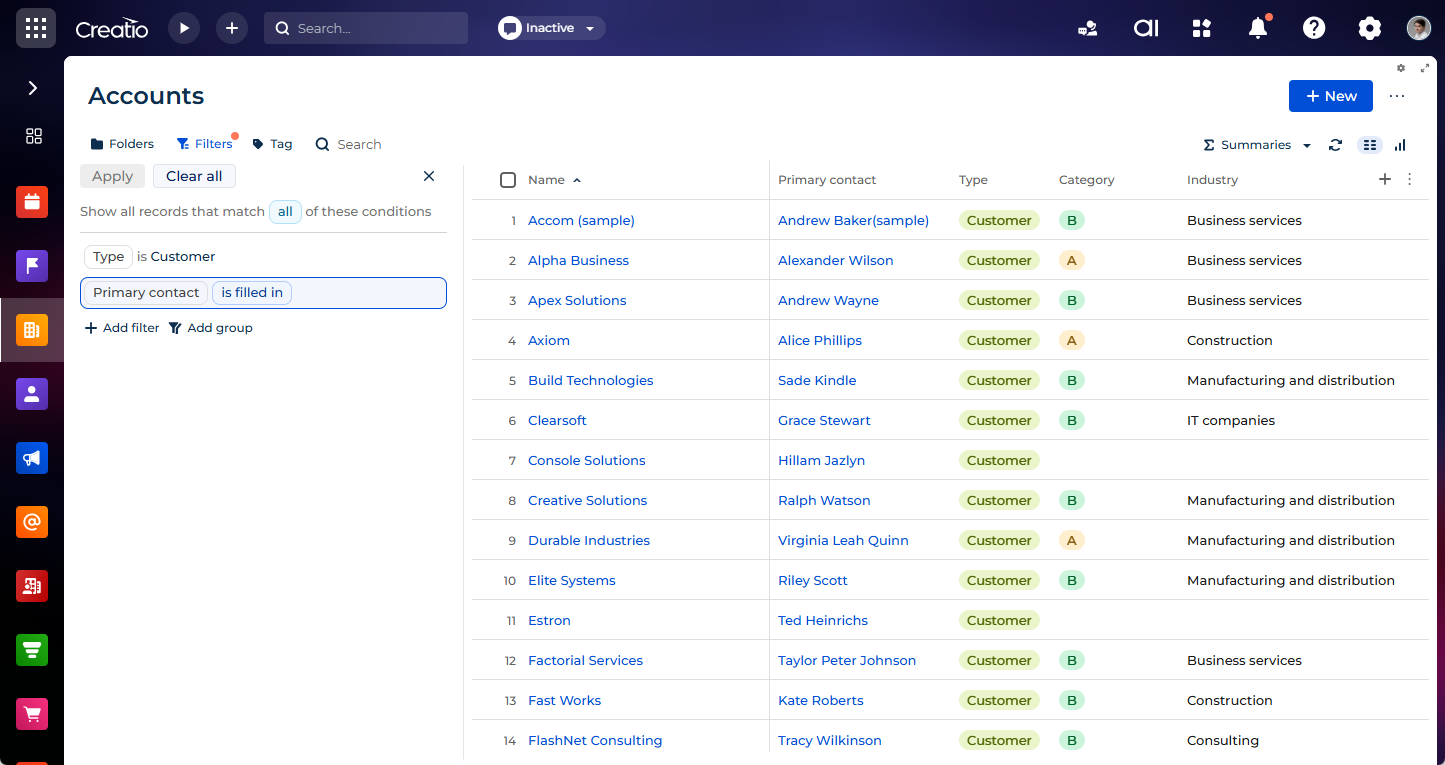
System variables in advanced filters. It is now possible to filter records by system variables in the Freedom UI filters, enabling them to resolve to the current user dynamically instead of a fixed manually selected value. This works for "Contact" (Contact code) and "System administration object" (SysAdminUnit code) columns of the "Lookup" type. For a "Contact" column, select the "Specific contact" operator to set a constant or choose a system variable to filter by the current user. For a "System administration object" column, select the "Specific value" operator to set a constant or choose a system variable instead. This brings Freedom UI filters in line with the filtering behavior previously available in Classic UI.
Date and time macros in filters. You can now filter by "Date," "Time," and "Date/Time" type columns faster using predefined macros, building standard filters without selecting an exact value. When you add a column and select an operator, a selector appears that lets you switch between a constant value and a macro such as "Today," "Previous N days," or "Last week." The Freedom UI filters now support all date and time macros available in the advanced filter functionality of Classic UI.
Persistent state for Filters toggle panel. It is now possible to keep your preferred view of the Filters toggle panel across sessions, as Creatio stores the expanded or collapsed state of the panel for each section in your user profile and restores it the next time you open the section. The state is personal, so your choice does not affect other users.
Filtering by related object attributes in advanced filters. It is now possible to filter records by attributes of related objects in the Freedom UI filters, including objects that reference the current object. These can be related objects that link back to the current record. This lets you build conditions based on connected data without preparing it in advance.
Creatio Mobile
Configurable drill-down columns for mobile widgets. It is now possible to configure which data columns appear in the drill-down table for metric and chart widgets on mobile pages. You can do this in the setup area of the widget in the Freedom UI Mobile Designer. Add fields from the available list, define their display order, and remove fields that are no longer needed. Mobile users can see the drill-down table that has the exact columns you configured, adapting the detailed data view to your specific business needs without additional coding.
Offline support for metrics and charts. You can now keep viewing the latest analytics in Creatio Mobile even when your connection is poor or unavailable. Metrics and charts retain the most recent values loaded while online. The app caches latest data received from the server and refreshes it automatically when the connection returns. Metrics and charts keep displaying the last successfully loaded values when the connection drops. Drill-down continues to work offline for data that had already been cached before the connection was lost.
Chart widgets in Creatio Mobile. You can now view chart widgets in Creatio Mobile for charts configured in the Freedom UI Mobile Designer. All chart types are supported, including doughnut, bar, column, area, spline, line, scatter, and pipeline. Charts display data based on the configured object, function, grouping, sorting, and filters. When no data is available or the device is offline, charts display an empty state without blocking page load or breaking the screen layout.
DataGrid with virtual data source support in Freedom UI Mobile Designer. Freedom UI Mobile Designer now supports mobile pages that contain a DataGrid grid bound to a virtual data source. You can open, edit, and save such pages in the designer without blocking errors, including moving, resizing, adding, or removing components and layout elements. When entity-specific DataGrid settings are unavailable for a virtual data source, the designer displays a non-blocking placeholder so the rest of the page remains fully editable.
Customizable mobile home page. It is now possible to give mobile users a personalized start screen that displays metrics and data most relevant to their role. Create and configure the home page using the same experience as in Freedom UI Designer by adding components, layout elements, widgets, inputs and fields. Home pages are assigned based on user role, and when more than one page is available, an indicator shows that additional home pages exist, and users can switch between the home pages by swiping. Users can return to the home page from any screen with a single tap, and the scroll position is preserved on return. Entities that support offline mode stay available without a connection. When no home page is assigned, Creatio Mobile opens the main page that displays sections.
Search in lists. You can now find the records you need faster by filtering a list as you type, without scrolling through the entire list, using the new Search component. The component filters results in real time starting from the first character, with partial and case-insensitive matching. Search applies only to the following supported field types:
- text
- number
Virtual data sources in the Creatio Mobile SDK. It is now possible to build Creatio Mobile screens that work with data not backed by a database table, for example, in-memory data, computed records, or data coming from a custom integration. You can define a virtual data source in TypeScript that supports the same operations as a regular data source, including listing, reading, creating, updating, and deleting records. Metadata-driven screens then use it like any other data source, so you can extend Creatio Mobile with custom data behavior without creating a dedicated object.
Integer attribute conditions in business rules. You can now use "Integer" type attributes in business rule conditions, including in offline mode. The full set of operators is supported: "is filled in," "is not filled in," "equals," "does not equal," "fewer than," "fewer than or equal," "more than," "more than or equal." Integer conditions are supported by object-level and page-level business rules.
Rename attachments. You can now rename an attached file directly in the attachments, keeping files clearly named without removing and re-uploading them.
Beta testing of new features
Page preview in Freedom UI Designer. It is now possible to verify page layout and behavior before publishing by previewing a configured page directly in the Freedom UI Designer. After reviewing the result, you can return to editing if adjustments are required.
To take advantage of this functionality, register and enable the InterfaceDesignerPreviewButton additional feature. Learn more: Implement a custom additional feature, Manage an existing additional feature.
Pivot table widget in Freedom UI. It is now possible to work with pivot table analytics entirely in Freedom UI in Freedom UI Designer and Dashboard Designer. You can configure rows, columns, values, static filters, object, title, and style settings directly in the widget setup area, including adding fields through the structure explorer and searching for fields. To take advantage of this functionality, register and enable the EnableFreedomUIPivotTable additional feature. Learn more: Implement a custom additional feature, Manage an existing additional feature.
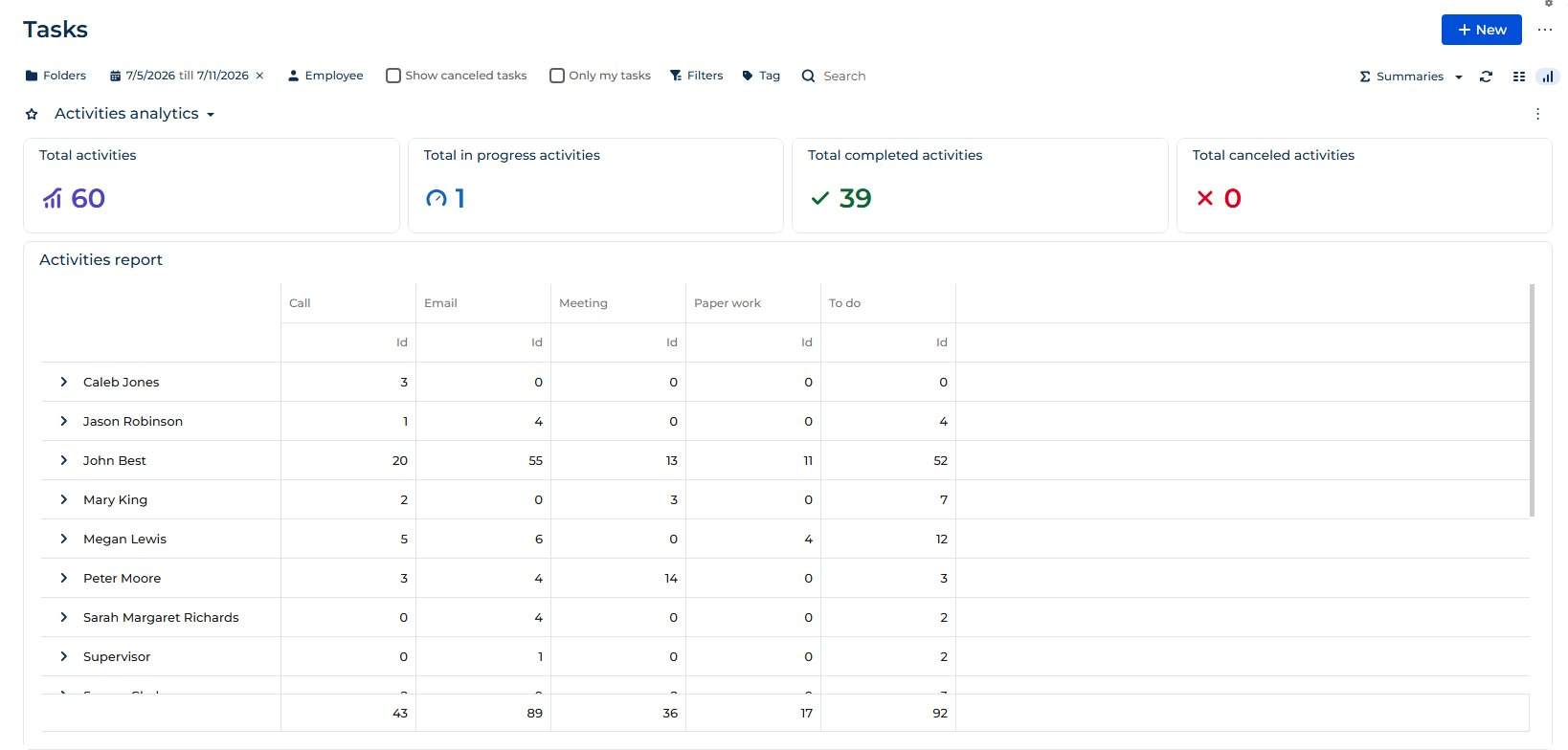
Metric comparison and trend indicator. It is now possible to analyze performance changes by configuring metrics that include comparison logic. Comparison is not limited to time-based periods. You can compare metrics across different time frames or between entirely different business indicators, unlocking more advanced analytical scenarios. A built-in trend indicator highlights how a key metric changes relative to the selected comparison value. It supports both percentage and absolute difference calculations, clearly indicating increase, decrease, or no change. Define a comparison value and configure page-data and preconfigured filters for both the main value and the comparison value without custom implementation, ensuring consistent and accurate data representation at runtime.
A built-in trend indicator displays the change of a key metric compared to a selected comparison period, supporting percentage and absolute difference calculations and reflecting increase, decrease, or no change states. The indicator provides a quick visual representation of metric dynamics without requiring analysis of underlying data and is available across all composable apps where the metric is used.
For example, this is useful in the following cases:
- Lead generation. Track the number of new leads this week vs. last week with a clear trend indicator.
- Conversion rate. Monitor changes in opportunity-to-deal conversion rates across periods.
- Customer support. Compare average resolution time vs. the previous period to spot efficiency improvements.
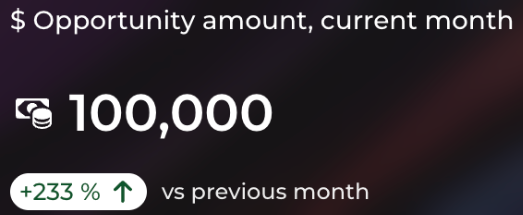
To take advantage of this functionality, register and enable the ShowMetricWithComparison additional feature. Learn more: Implement a custom additional feature, Manage an existing additional feature.
Multiple identity provider connections. You can now connect different Creatio services and microservices to separate Identity Service instances for outgoing integrations with external applications by configuring multiple identity provider connections and mapping each connection to the services that must use it. Manage the connections in a dedicated Identity providers management section of the System Designer, bind each connection to a service or service group, and any service without an explicit mapping falls back to the default identity provider. To use this functionality, register and enable the IdentityProvidersManagement additional feature. Learn more: Implement a custom additional feature, Manage an existing additional feature.
Deferred installation of OAuth integrations. It is now possible to create an OAuth integration in the OAuth integrated applications section in a not installed state. You can prepare the full configuration of the integration before registering it, then install it in a single action when you are ready. While an integration is not installed, no credentials are generated and no calls are made to the Identity Service. Installing it validates the configuration, registers the integration, generates its credentials, and activates it. This also makes it possible to deliver ready-made integrations together with packages and applications, so you only need to install them instead of configuring everything from scratch. To use this functionality, enable the OAuthClientAppAllowCreateNotInstalled and OAuthClientAppInstallStatus additional features. Learn more: Manage an existing additional feature.